
One short page that changes with the topic. Each topic asks its own follow-up questions and goes to a different team’s inbox.
Try it
Pick “Technical problem”, then answer “Yes” to the urgent question to see the callback number appear.
How it’s built
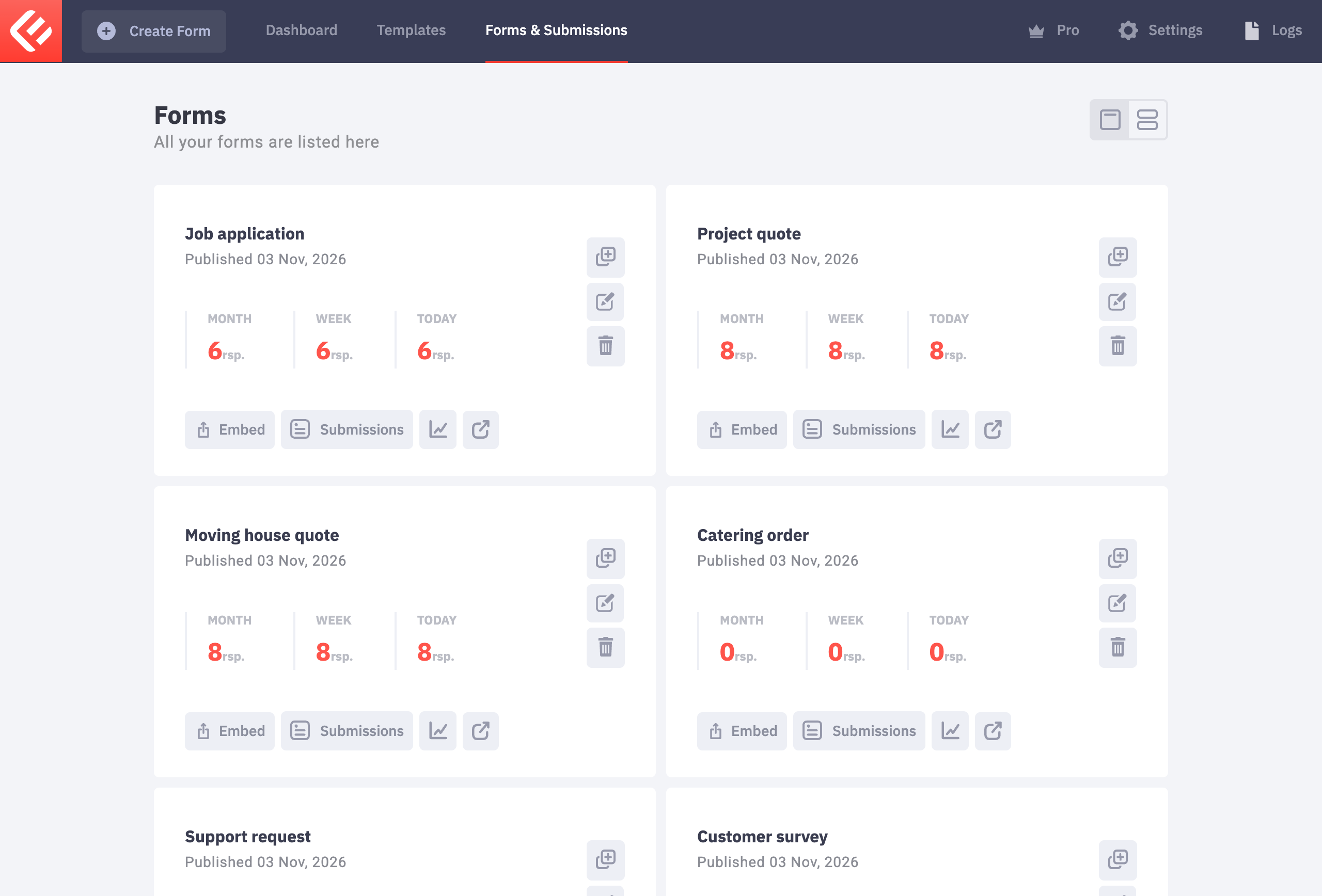
In your WordPress admin, open Epic Forms → Forms & Submissions and click Create Form. Give it a name you’ll recognise later.
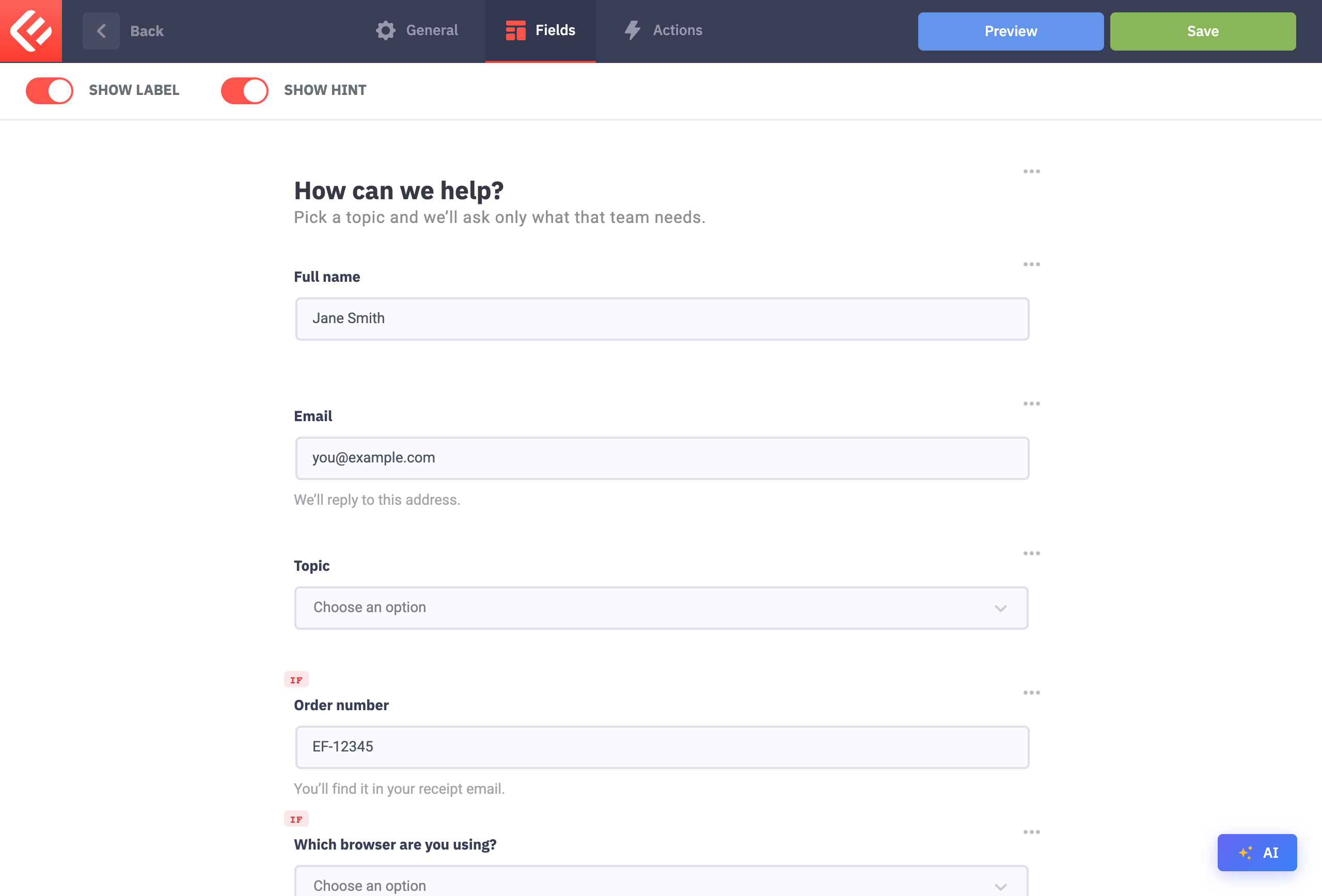
Build each question as on any form: click Add Field, set its label, switch on Required where an answer is needed, and give it a data tag for emails. New to Epic Forms? The contact form guide covers these basics step by step.
Add the fields everyone answers (name, email, a Select field called Topic, and your message), then the follow-up fields: Order number, Which browser, What happened, Is this stopping you from working?, a Phone field and Tell us more. You don’t need steps: conditional logic works on a one-page form too.
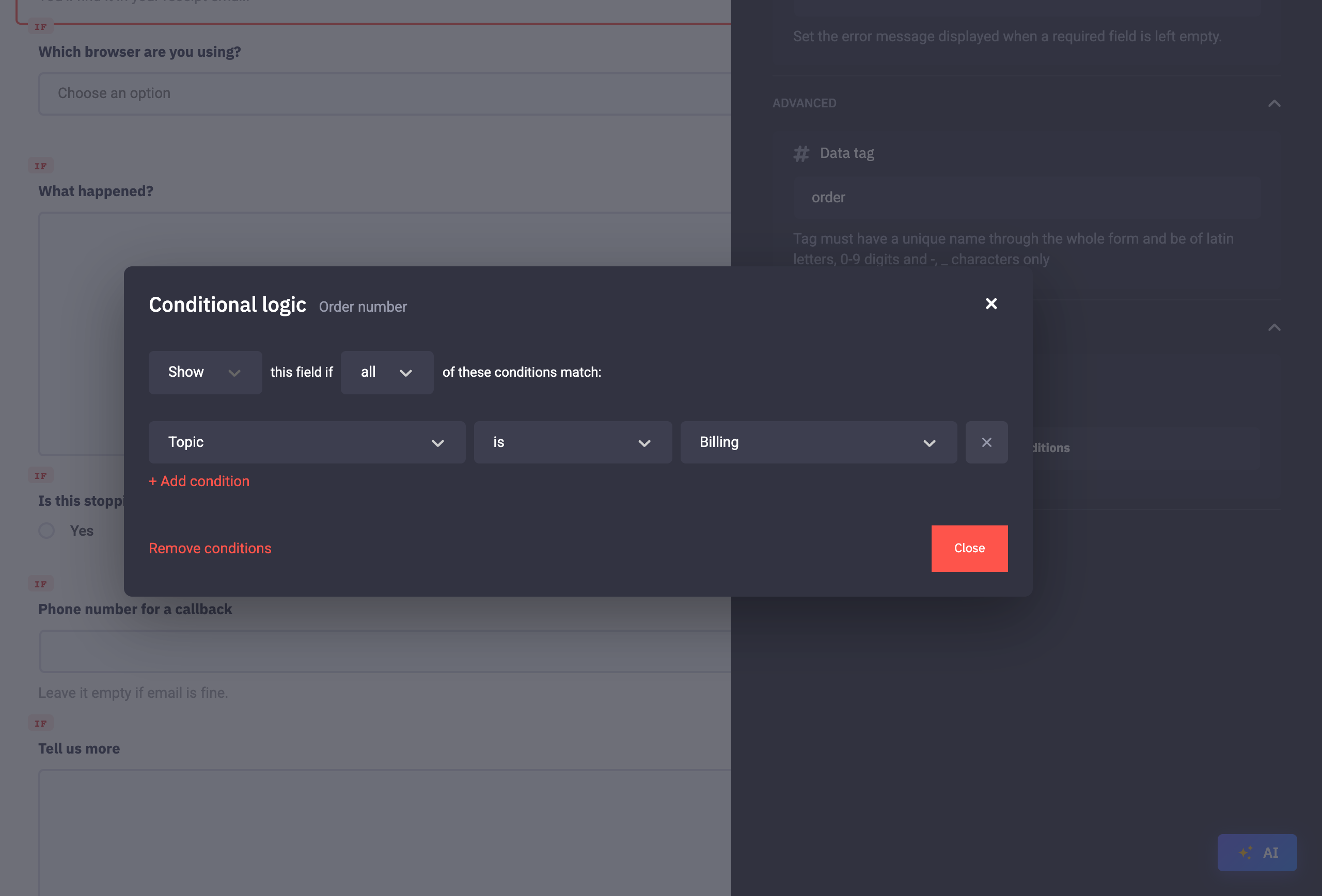
Click Order number, open Conditional logic at the bottom of its settings and click Add condition. Set Show this field if Topic is “Billing”. Pick the value from the list: it’s the option text exactly. Give the three technical questions Topic is “Technical problem”, and Tell us more Topic is “Something else”.
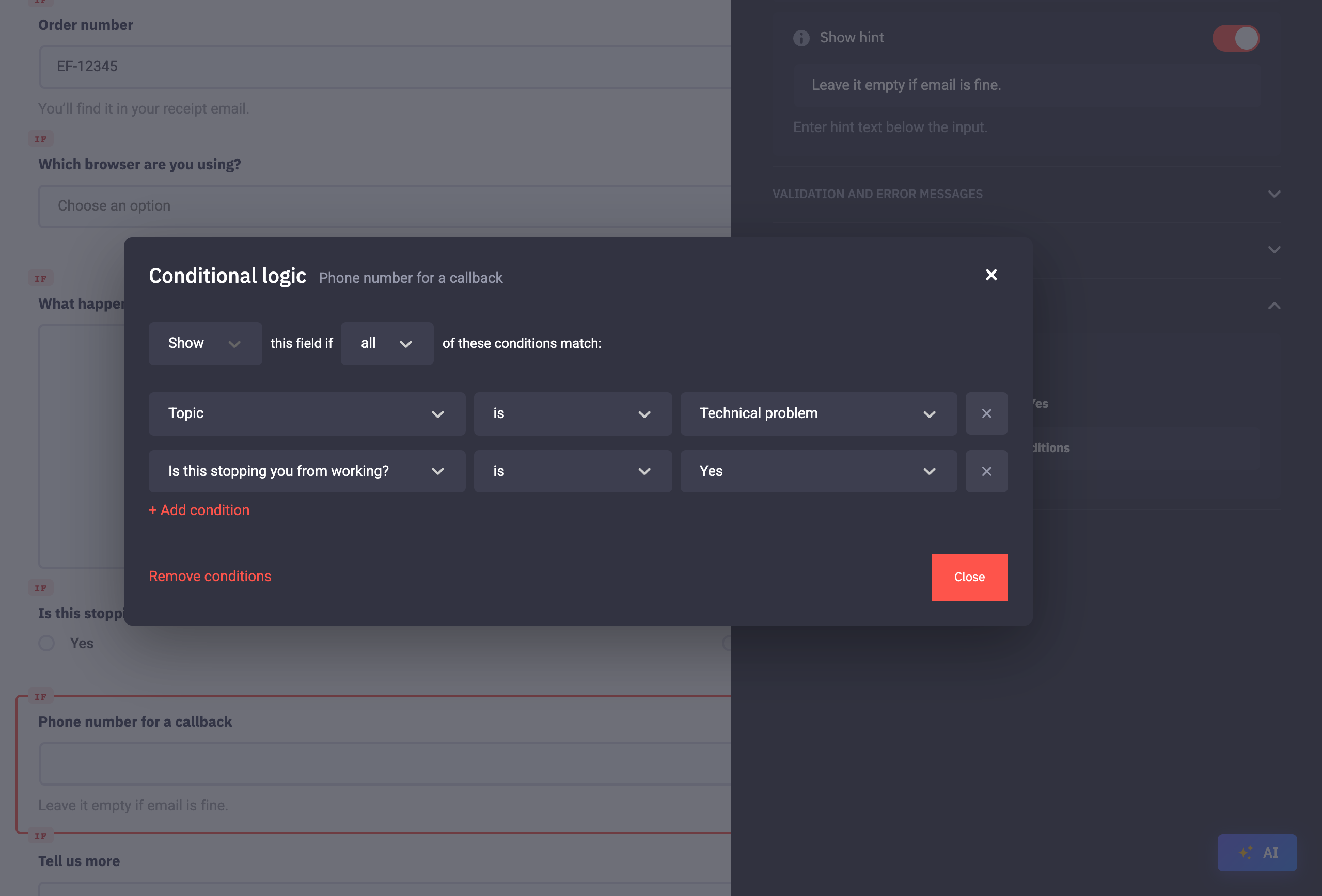
The callback number needs two answers. On the Phone field, set Show this field if all of these conditions match, click + Add condition for a second line, and use Topic is “Technical problem” and Is this stopping you from working? is “Yes”.
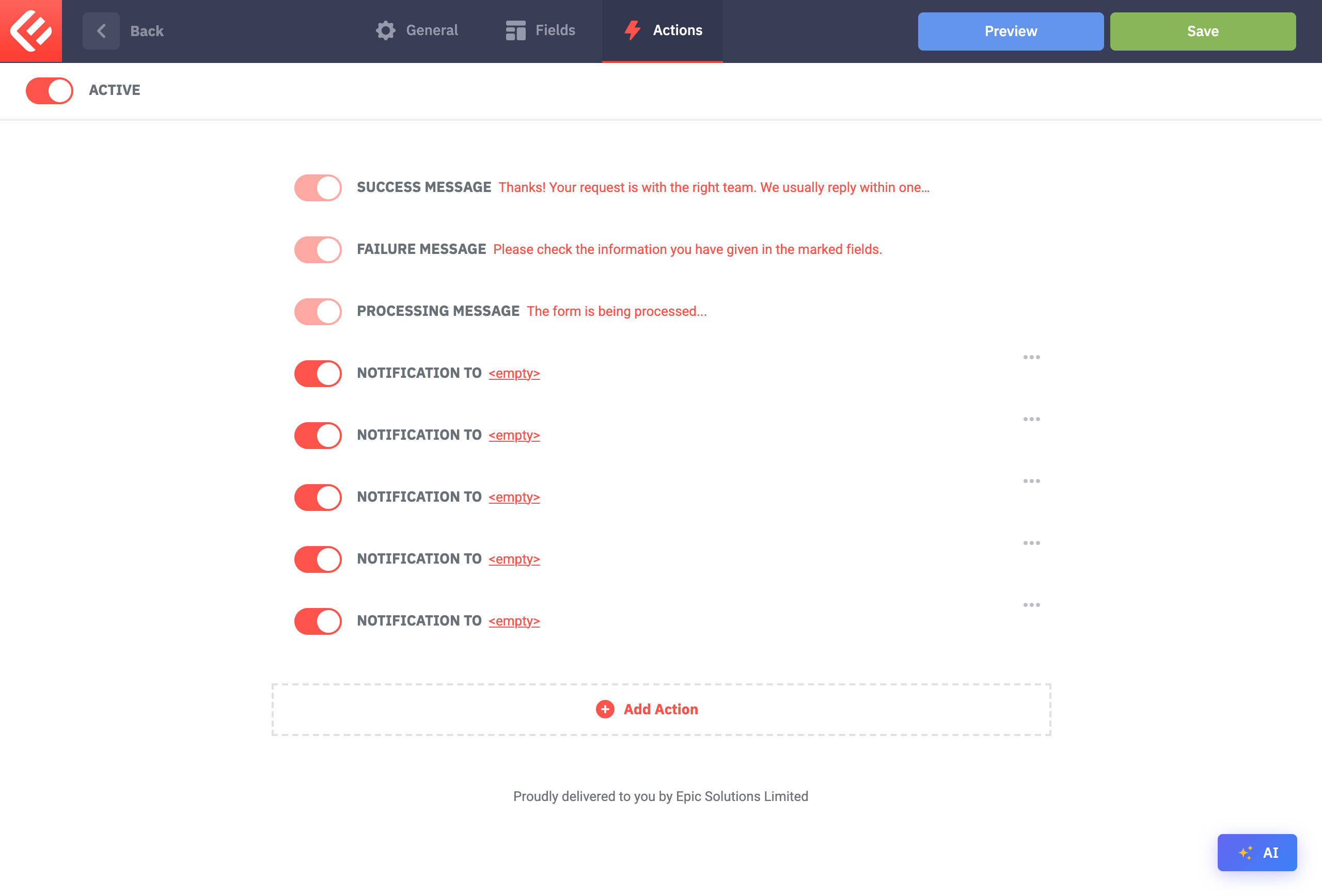
Route each request to the right team. On the Actions tab add five Notifications, one per team, with the team in the subject, like “[Billing] New support request”. Give each Run this action if Topic is that team’s topic. The fifth, “[Callback] Phone us back”, runs if Phone number for a callback is not empty. A hidden question counts as empty, so changing the topic after typing a number sends no callback email.
Click Save to keep your changes, then Publish. Visitors only see a form once it’s published.
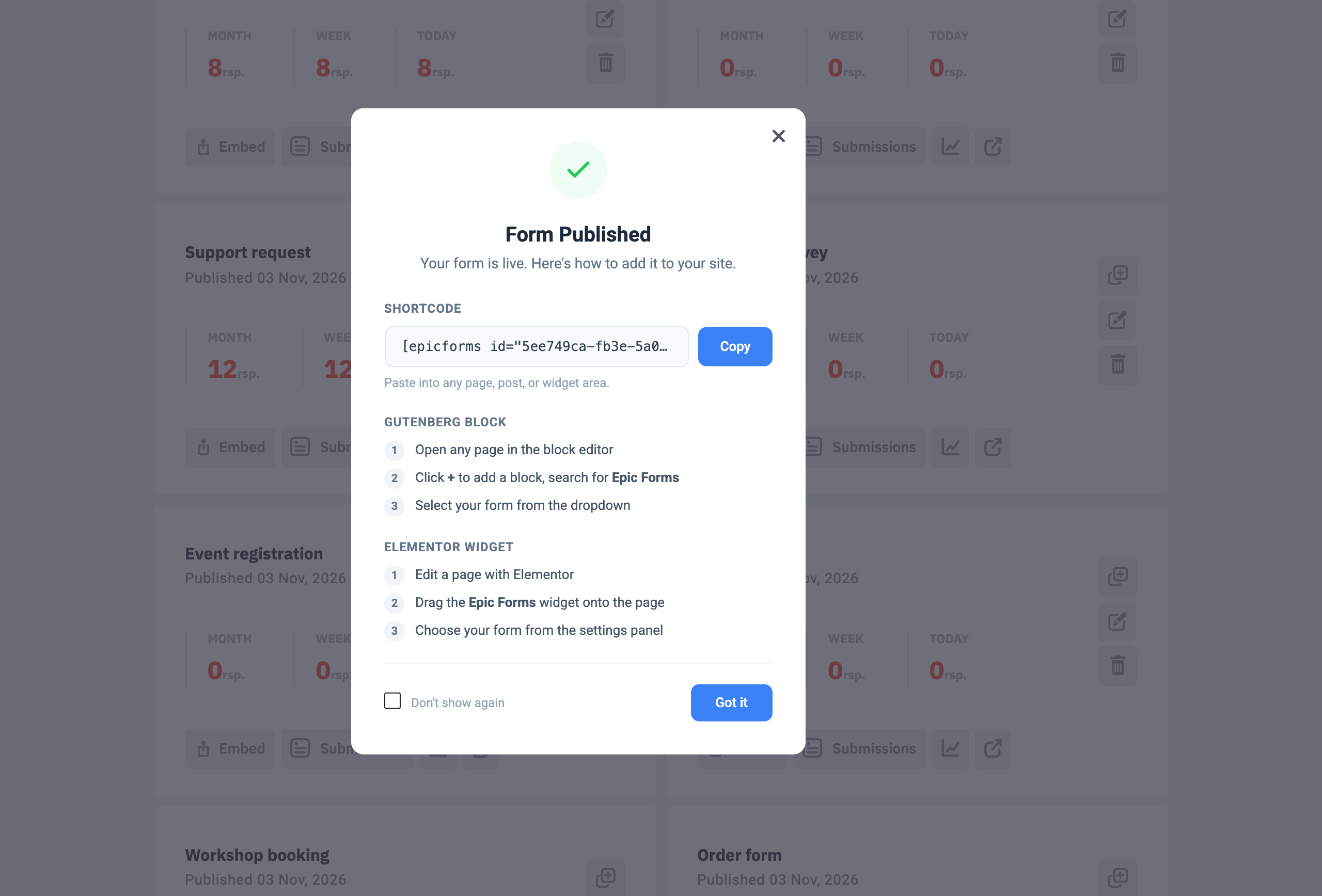
Put the form on a page: in Forms & Submissions click Embed on your form’s card. Copy the shortcode into any page, or add the Epic Forms block in the block editor and choose your form.
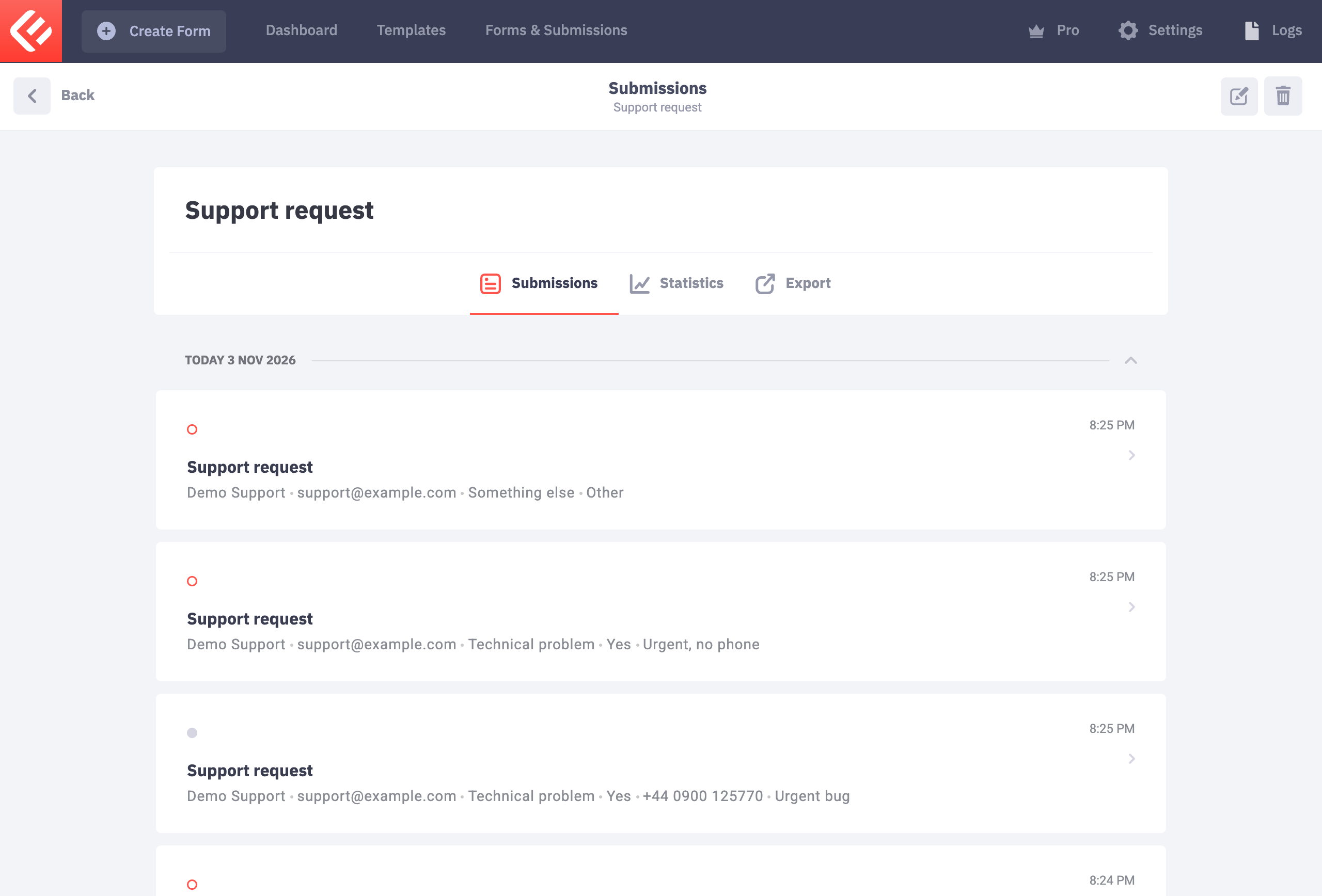
Open the page and fill in the form yourself to test it. Every submission appears in Epic Forms → Forms & Submissions under your form’s Submissions tab.
Behind the scenes, each topic emails a different team: Billing, Technical, Sales or General. An urgent technical problem with a phone number also emails a callback request. Those emails go to our demo inbox, so you won’t see them.