A conversational form: one question at a time, with no step indicator. A removals quote that asks follow-up questions based on the size of the move.
Try it
Answer each question and press OK. Try 4 bedrooms, then 1, to get a different follow-up question.
How it’s built
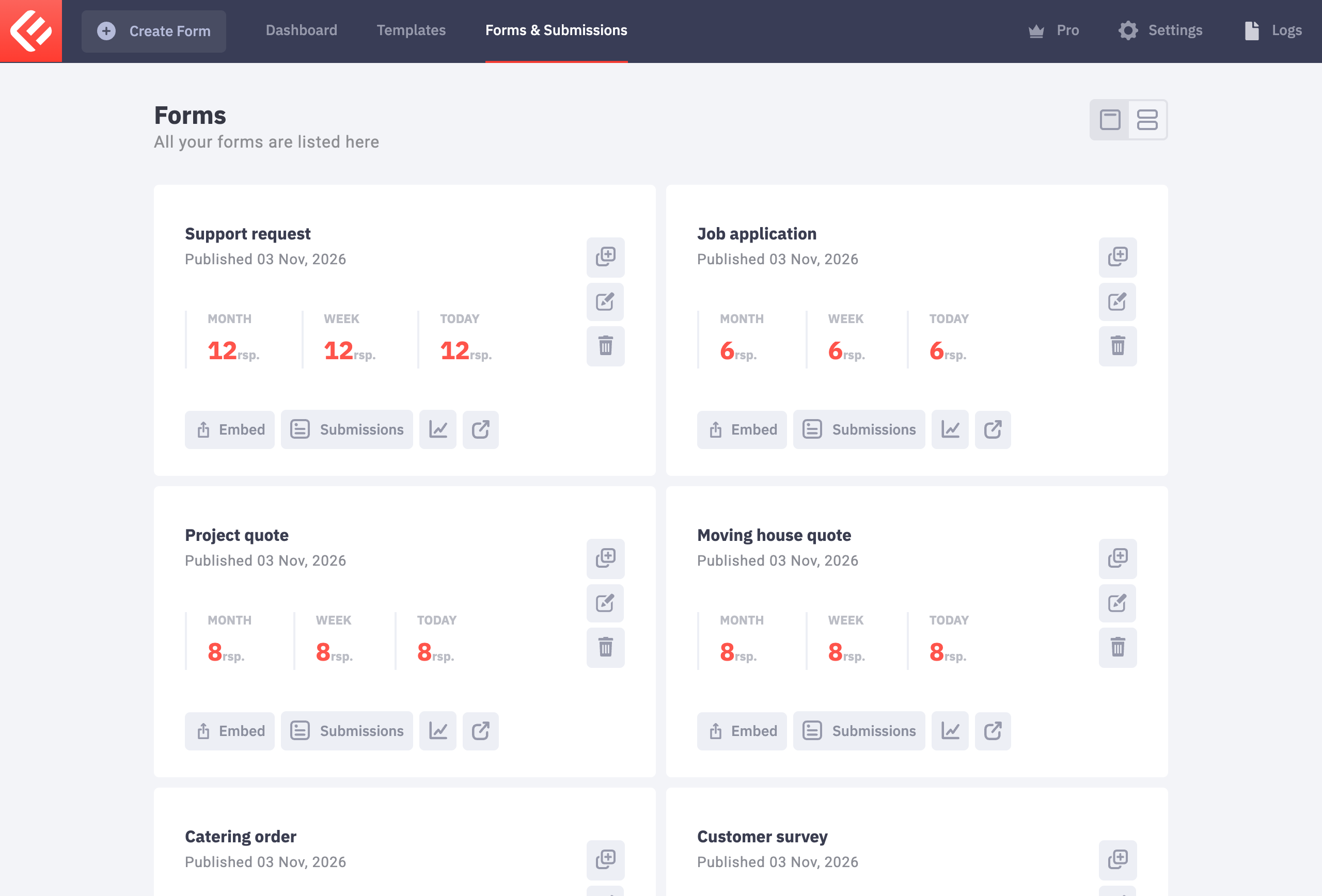
In your WordPress admin, open Epic Forms → Forms & Submissions and click Create Form. Give it a name you’ll recognise later.
Build each question as on any form: click Add Field, set its label, switch on Required where an answer is needed, and give it a data tag for emails. New to Epic Forms? The contact form guide covers these basics step by step.
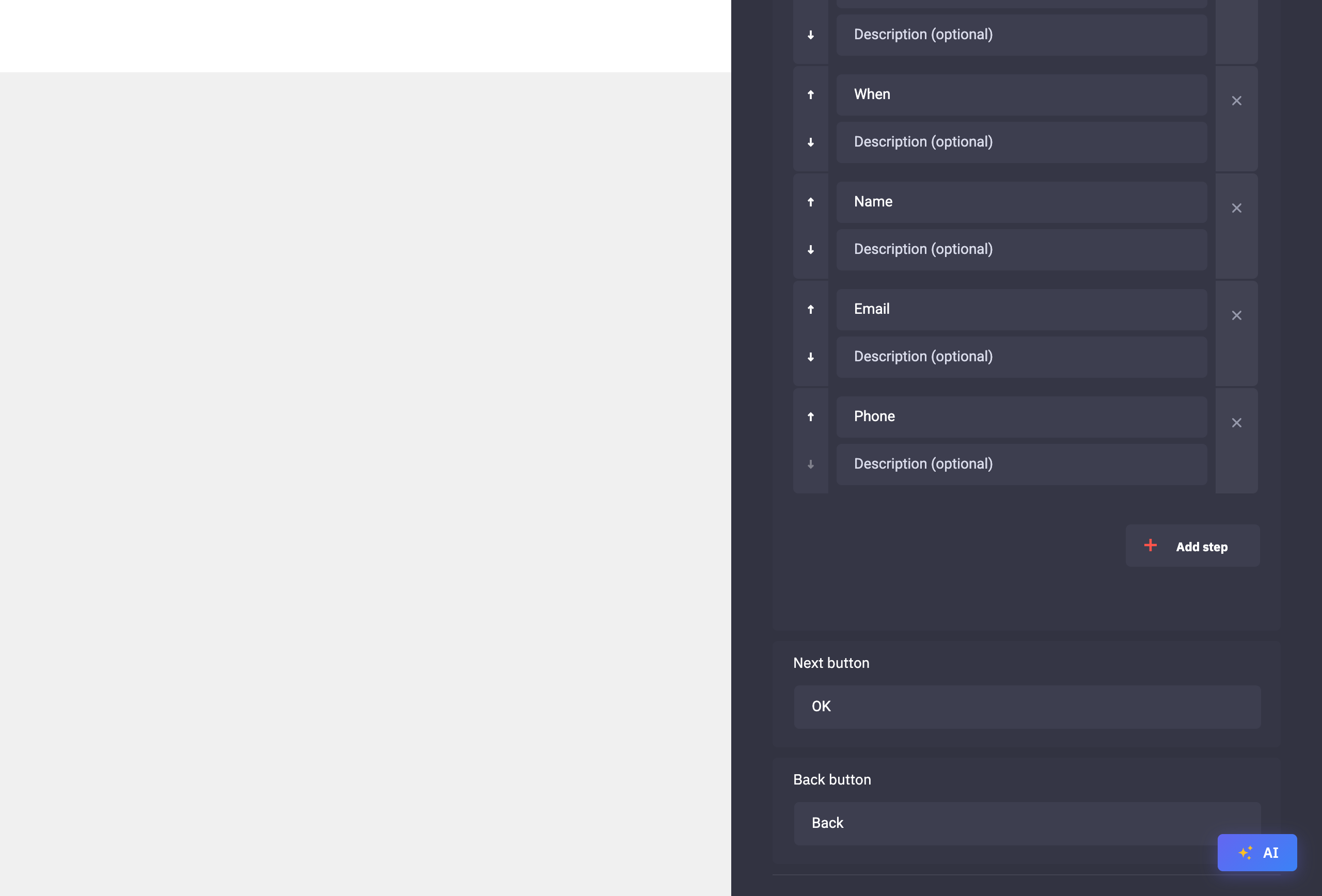
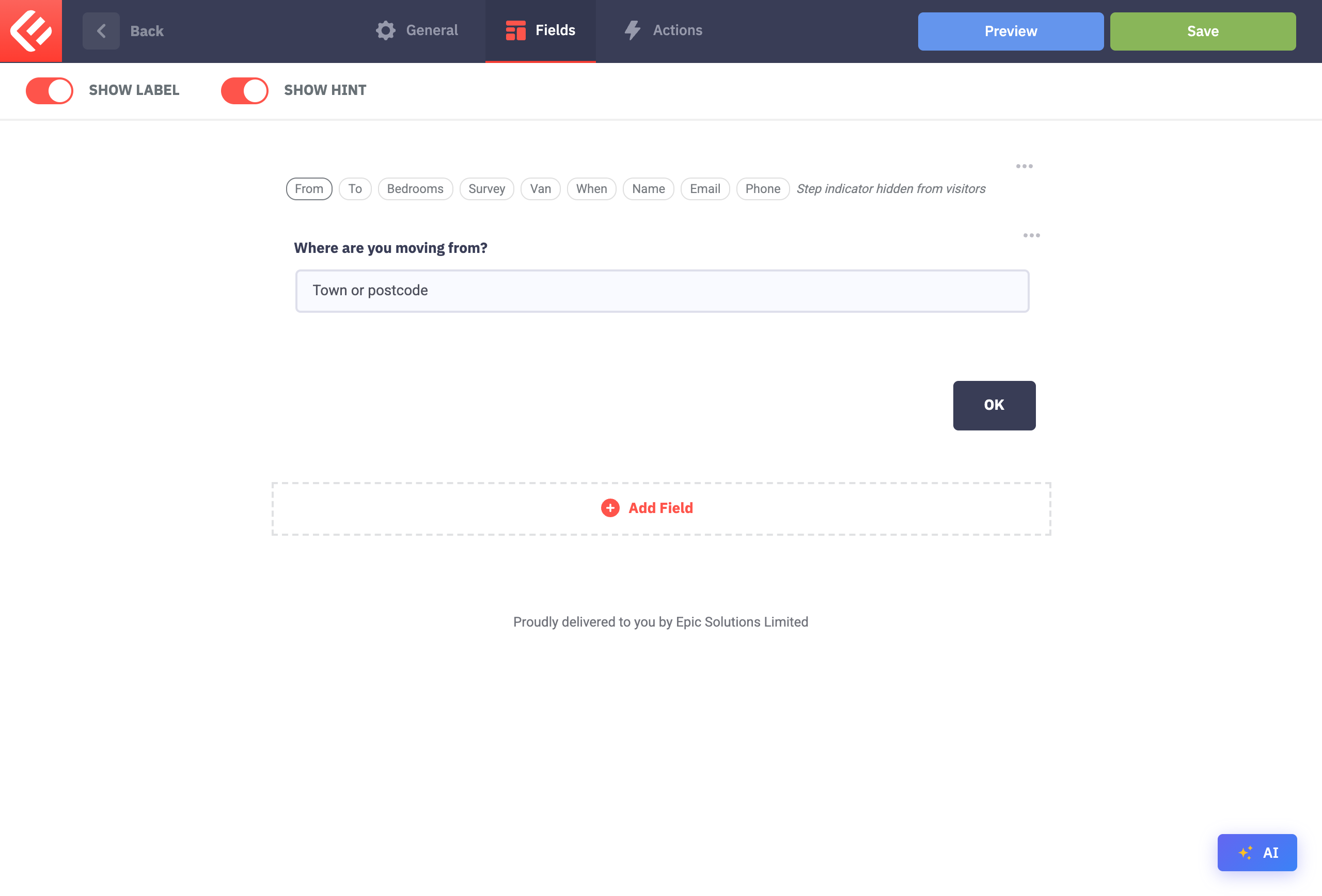
Click Add Field and add Steps (Epic Forms Pro), then click the step indicator and use Add step until every question has its own step. Give each step a short title, like Bedrooms or Email: visitors won’t see the titles, but they help you find your way around the editor.
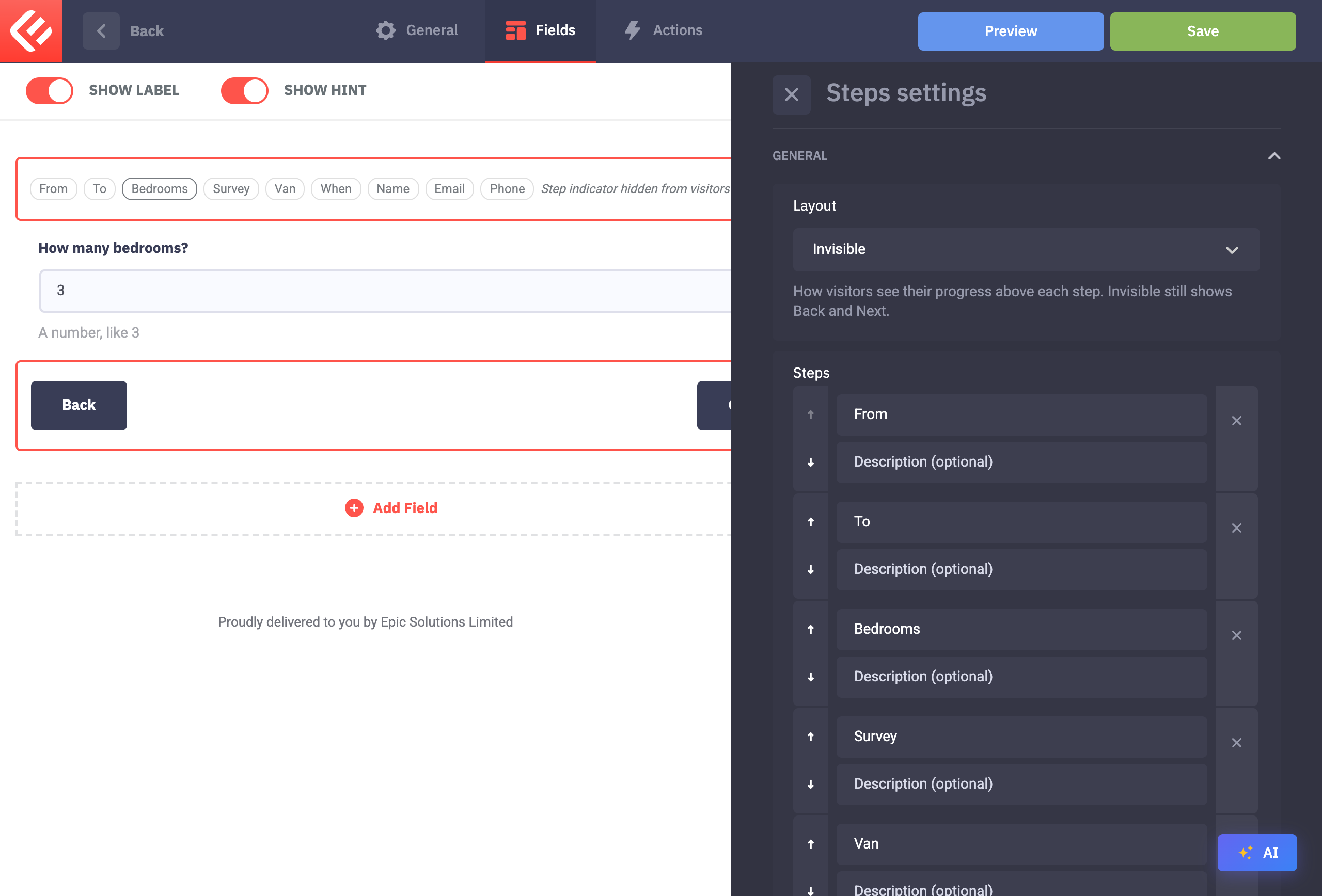
In the Steps settings, under Layout, choose Invisible. Visitors see just the question and the buttons. On the canvas, small step buttons stay visible so you can still move between steps while editing.
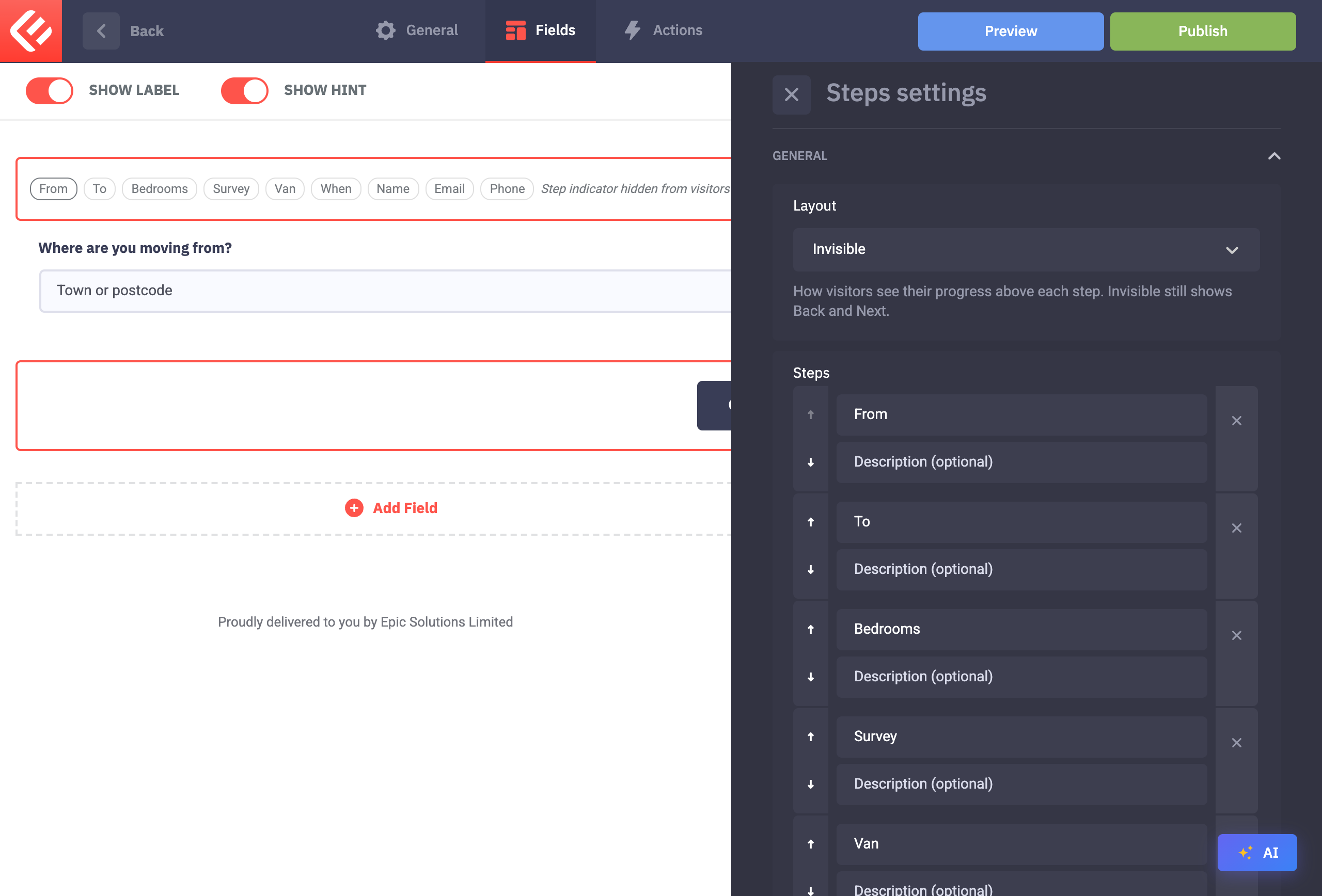
Change the Next button text to “OK” to make it feel like a conversation. Visitors press OK to go on, and the cursor moves straight into the next question.
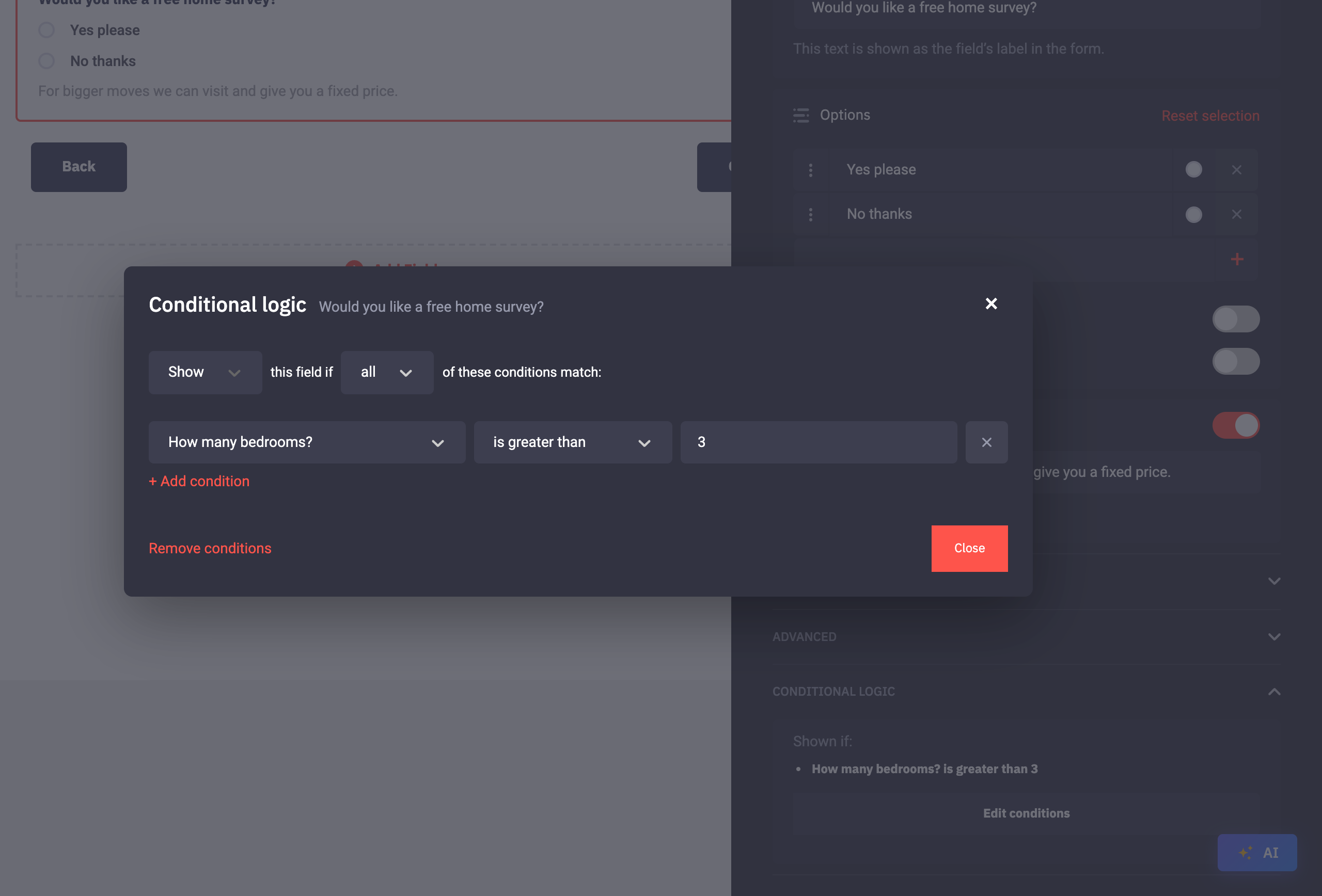
Ask a follow-up question only for some numbers. Epic Forms has no separate number field: ask for the number in a Text field. On Would you like a free home survey?, set Show this field if How many bedrooms? is greater than 3. The van question uses is less than 2. These conditions only match a plain number, so an answer like “three” matches neither, and both follow-ups are skipped.
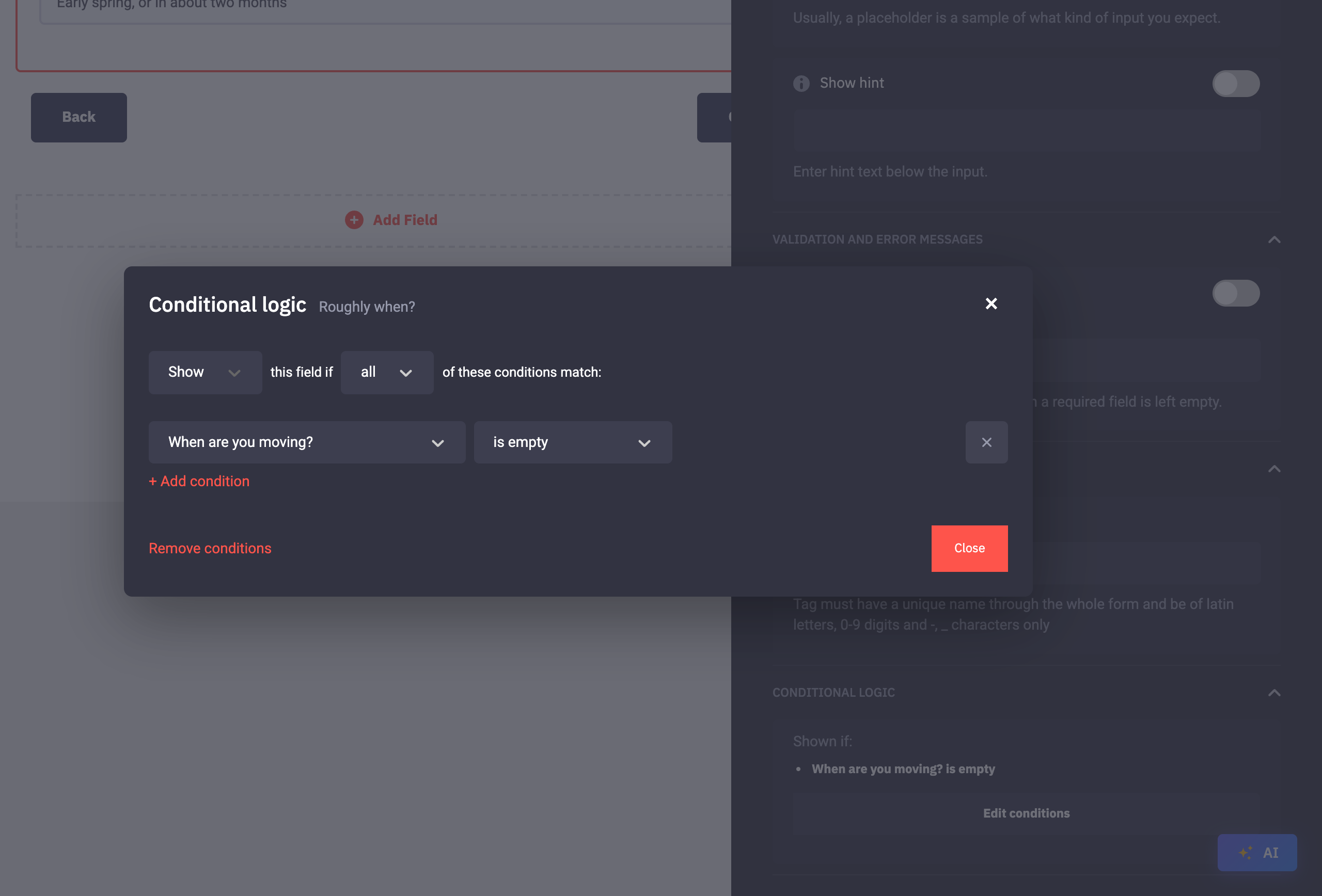
Ask “Roughly when?” only if the date was left empty: Show this field if When are you moving? is empty. Conditions can chain: the phone number is only asked when Would you like a free home survey? is “Yes please”.
A step whose question is hidden is skipped, so each visitor sees only the questions that apply to them. The last step holds the Submit button, so it always shows.
Click Save to keep your changes, then Publish. Visitors only see a form once it’s published.
Put the form on a page: in Forms & Submissions click Embed on your form’s card. Copy the shortcode into any page, or add the Epic Forms block in the block editor and choose your form.
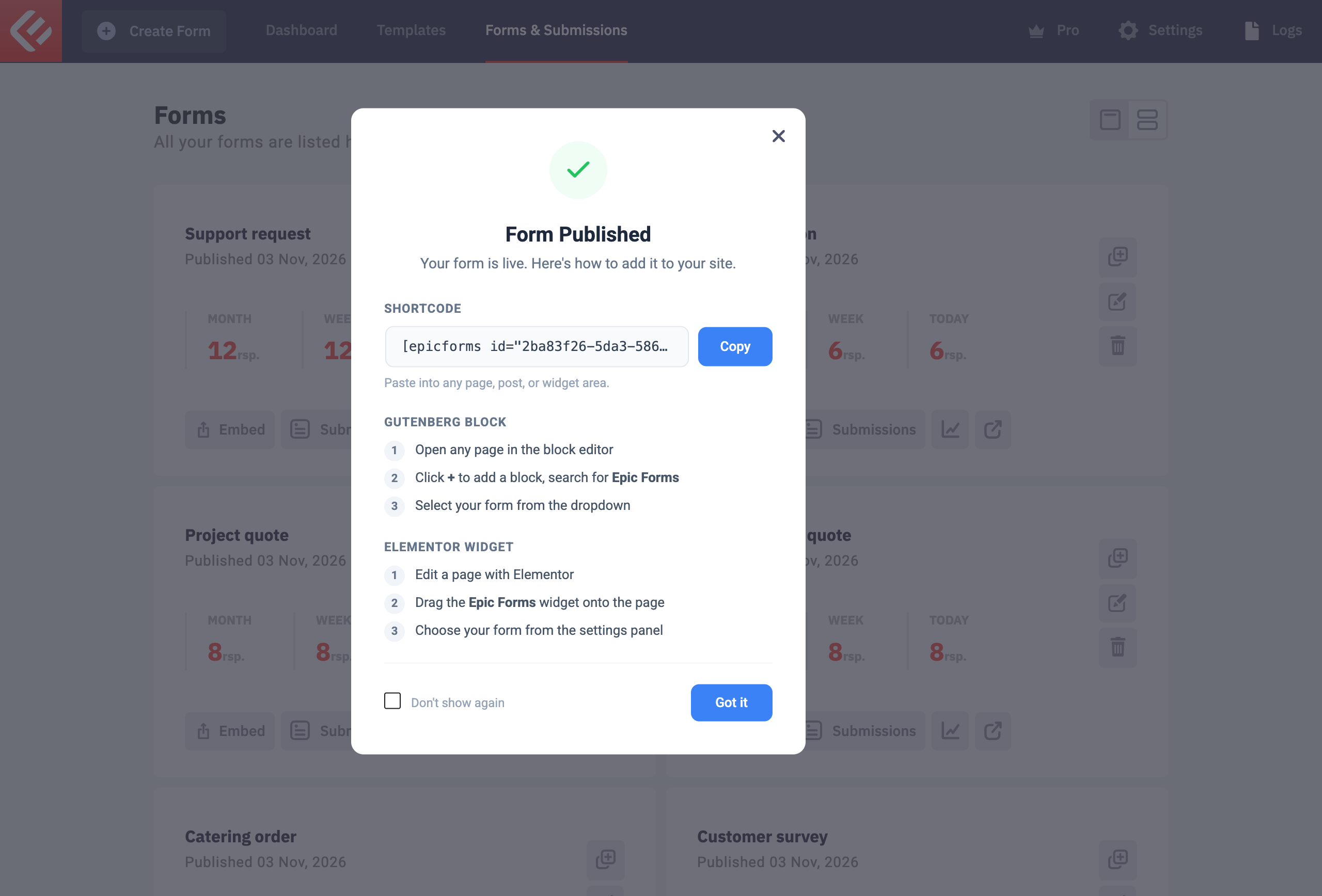
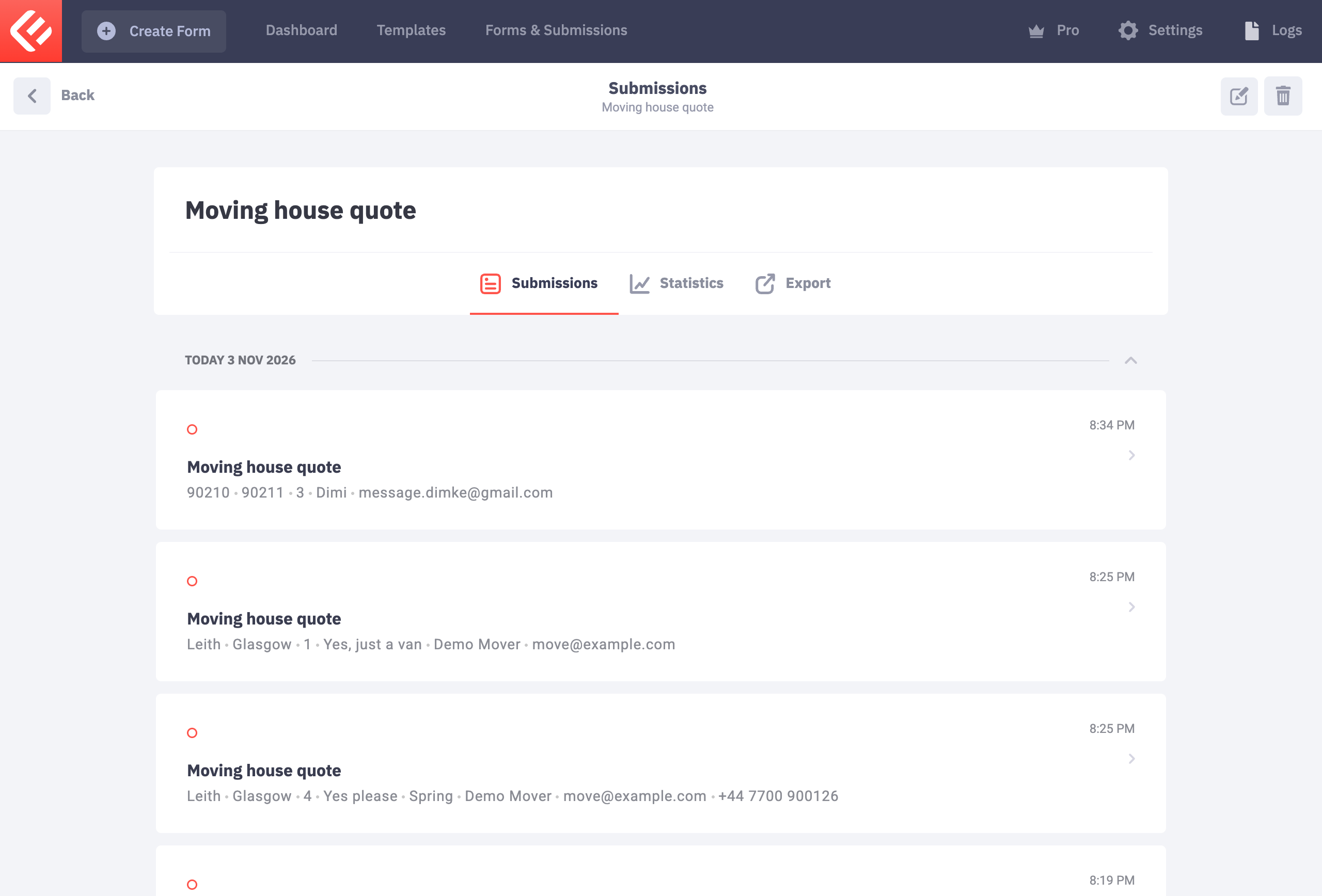
Open the page and fill in the form yourself to test it. Every submission appears in Epic Forms → Forms & Submissions under your form’s Submissions tab.