An order in three steps that changes with the answers: a bigger order unlocks extras, and delivery adds an address and a fee. Payment comes last.
Try it
Choose a platter, then on the Delivery step switch between Delivery and Collection and watch the total. Pay with the test card below.
Try a test payment. Card: 4242 4242 4242 4242, any future expiry date, any CVC. No real money is taken.
How it’s built
In your WordPress admin, open Epic Forms → Forms & Submissions and click Create Form. Give it a name you’ll recognise later.
Build each question as on any form: click Add Field, set its label, switch on Required where an answer is needed, and give it a data tag for emails. New to Epic Forms? The contact form guide covers these basics step by step.
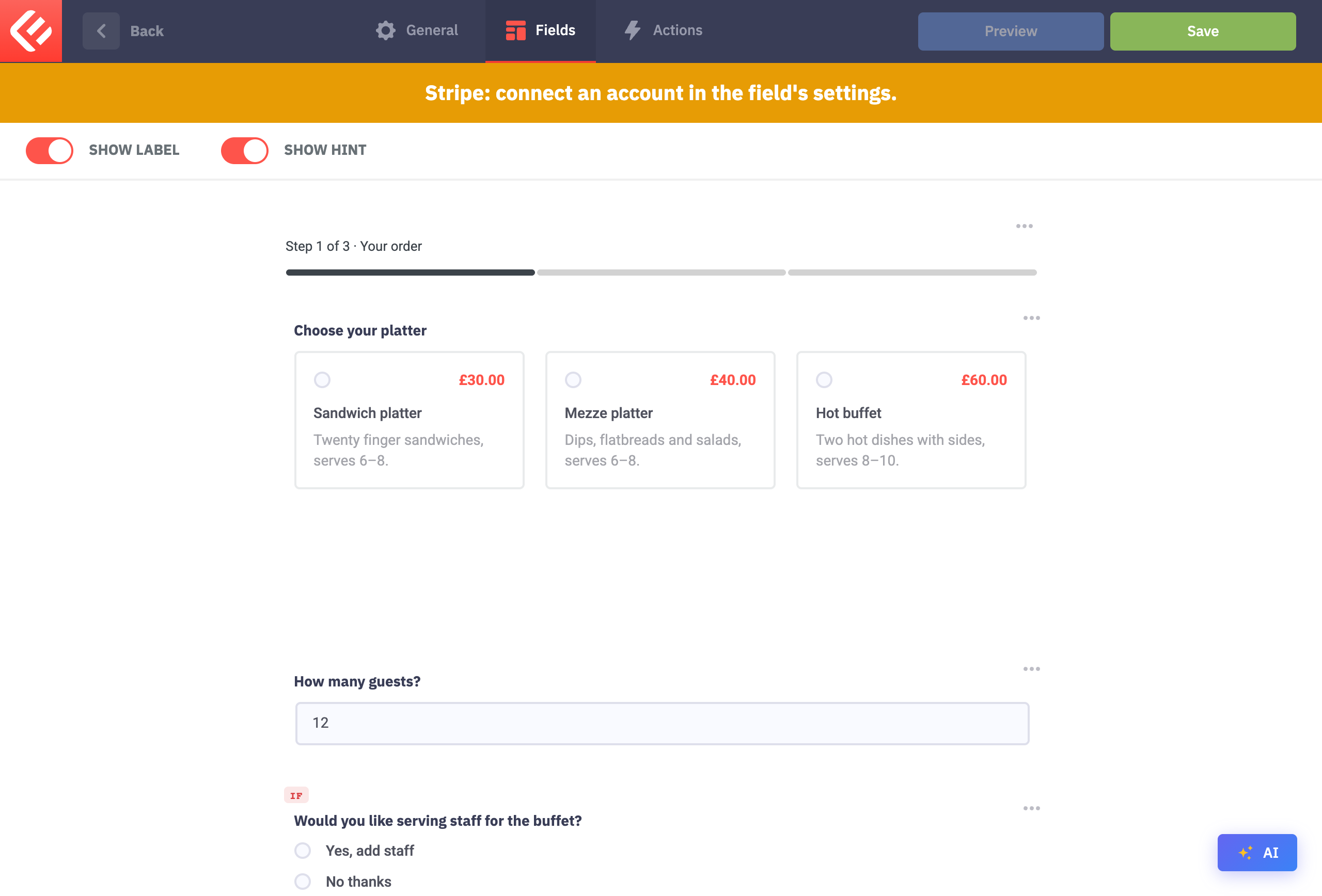
Add Steps (Epic Forms Pro) and three steps: Your order, Delivery and Pay. Choose Inline under Layout. On the first step, add a Pricing field with your three platters.
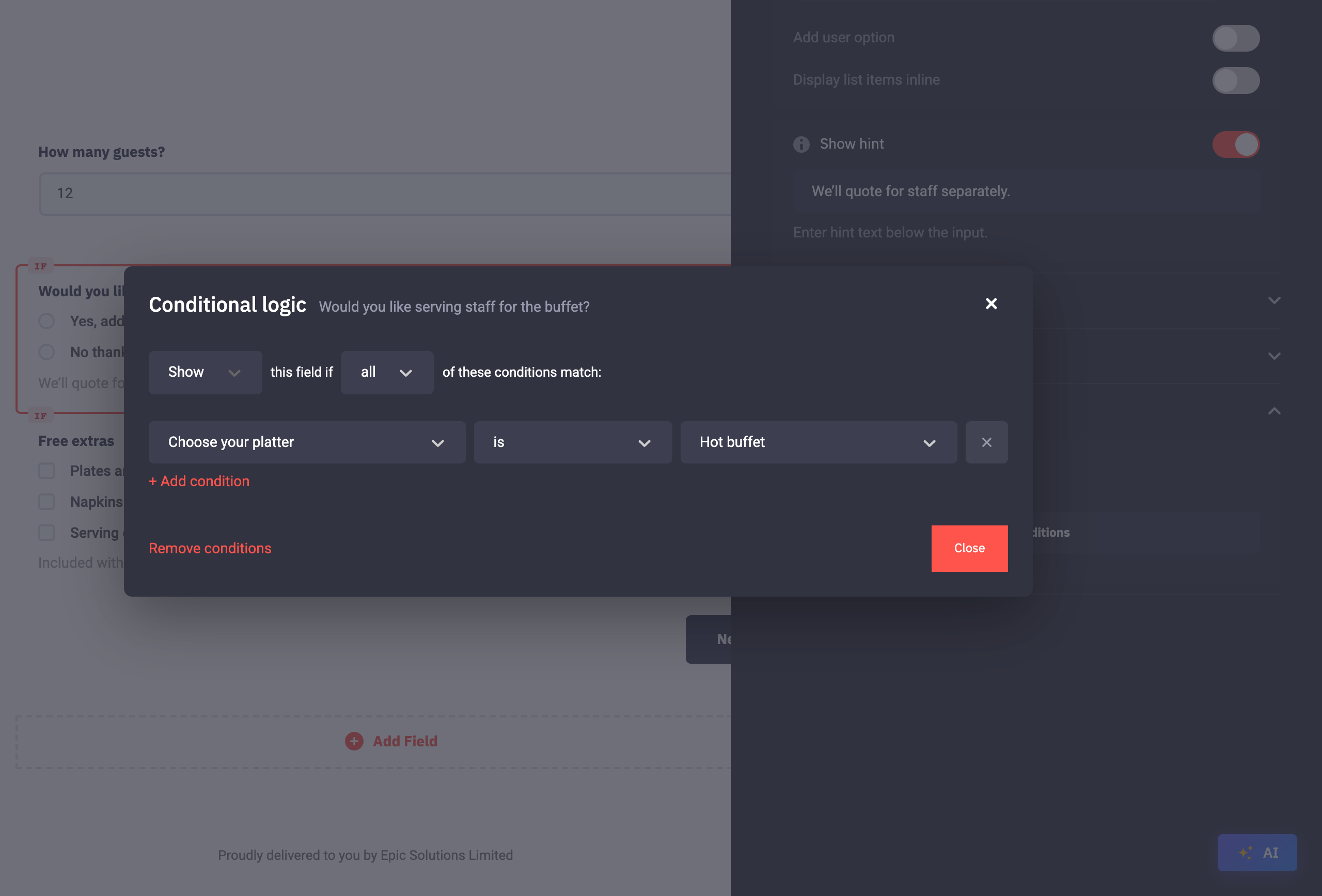
Conditions can read a Pricing choice by its name or by its price. Would you like serving staff? has Show this field if Choose your platter is “Hot buffet”. The free extras use the price: Show this field if Choose your platter is greater than 35.
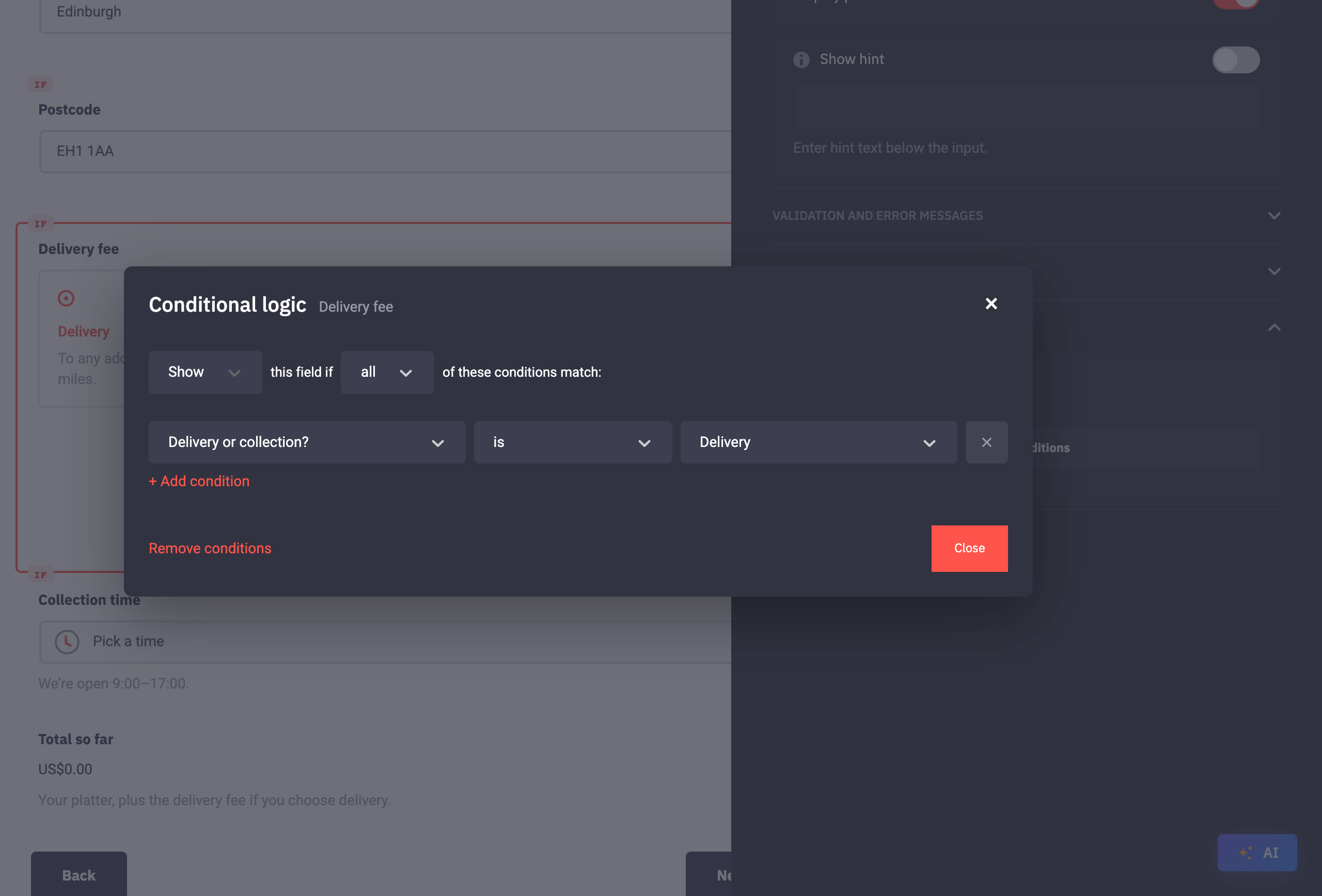
On the Delivery step, add the address fields and a second Pricing field, “Delivery fee”, with one option at £8, marked as the Default so it’s added as soon as it appears. Give each of them Show this field if Delivery or collection? is “Delivery”, and give the collection time “Collection”. A hidden price never counts: choose Collection and the fee drops out of the total and the payment.
Add a Total field on the Pay step. It adds up the prices the visitor can see as they fill the form in. You can add more than one: this form also shows the total so far on the Delivery step.
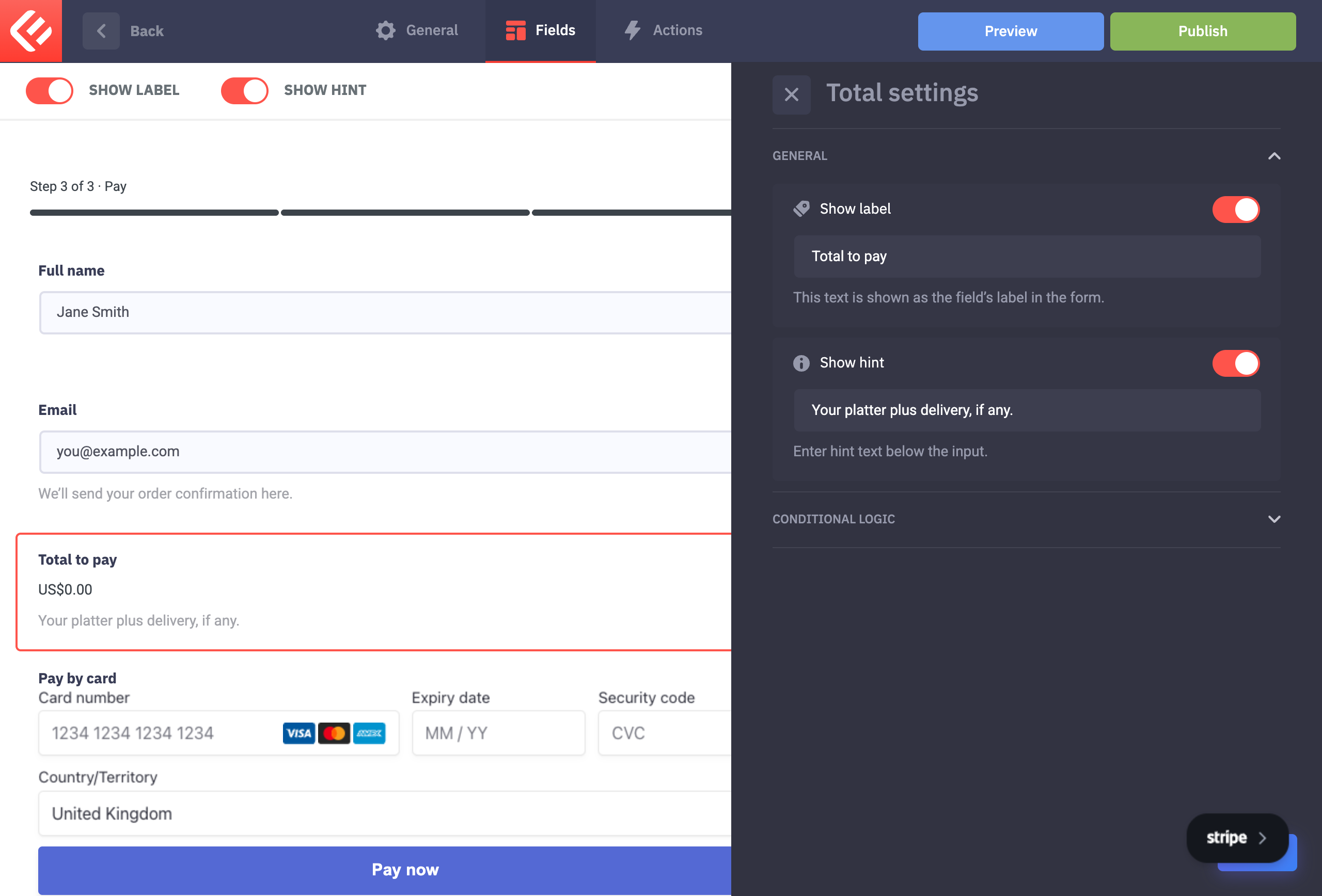
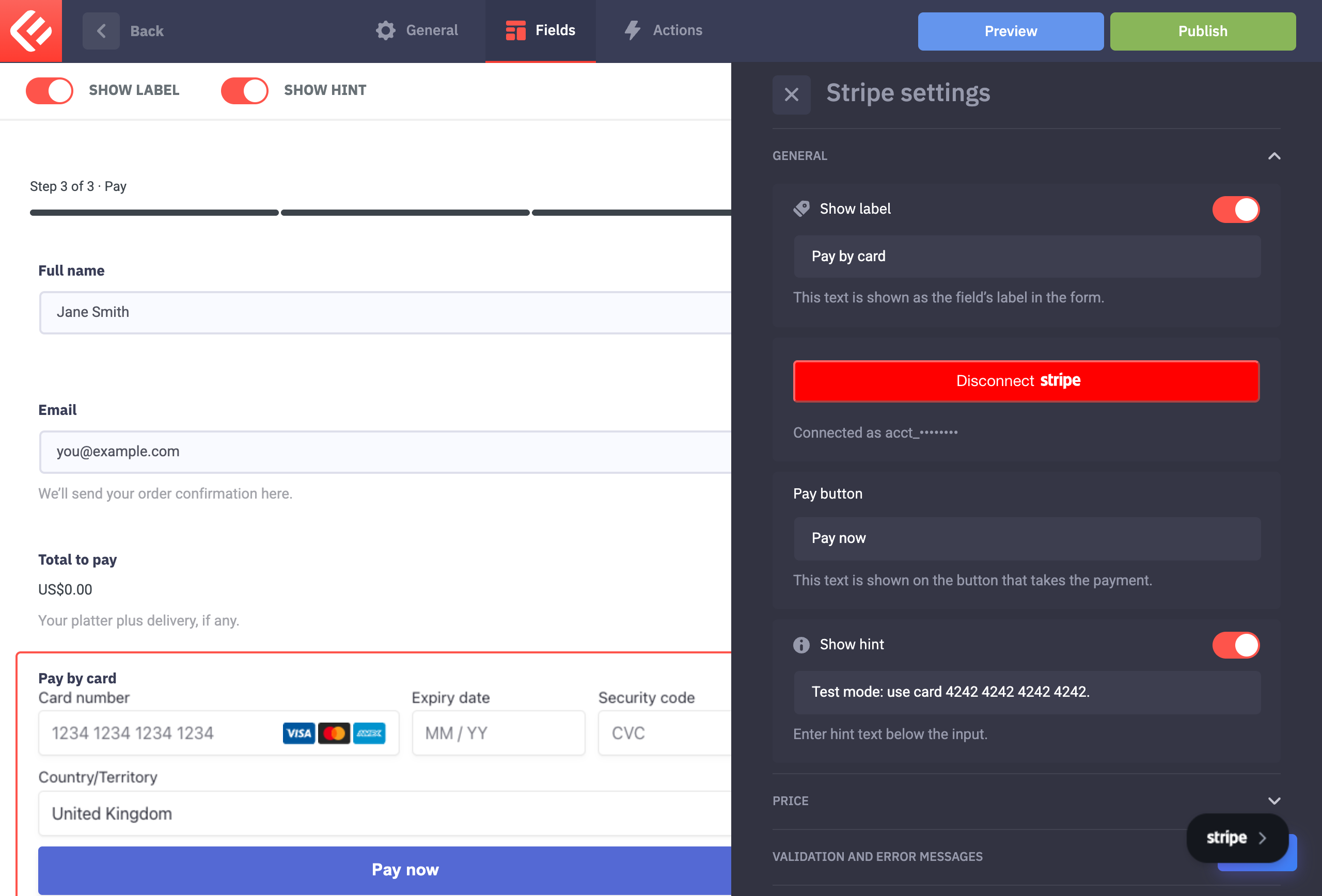
Add a Stripe field and leave its price empty, so it charges the total. Payment fields and the Submit button always sit on the last step: the editor moves them there for you. A form can have one payment field.
Click Save to keep your changes, then Publish. Visitors only see a form once it’s published.
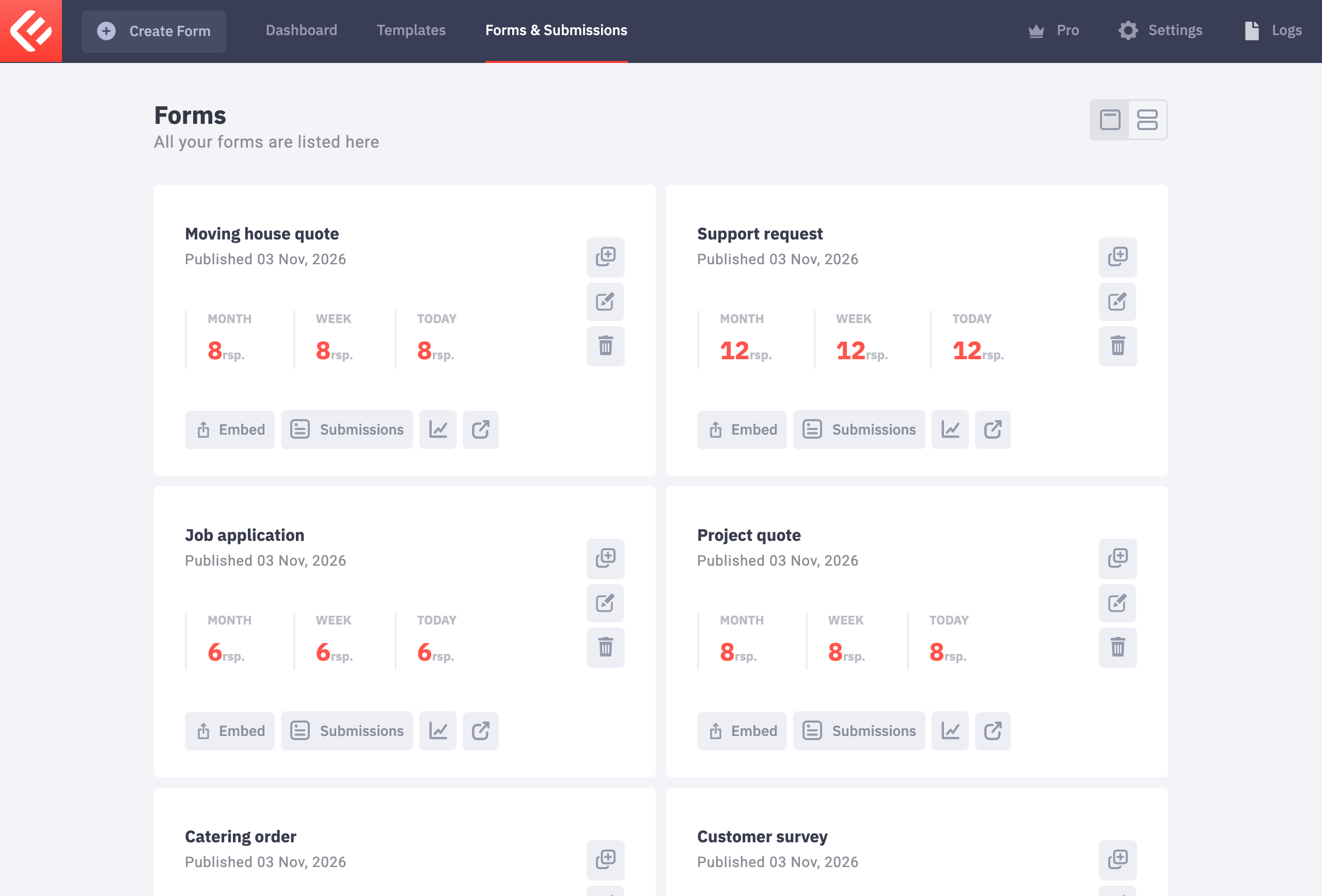
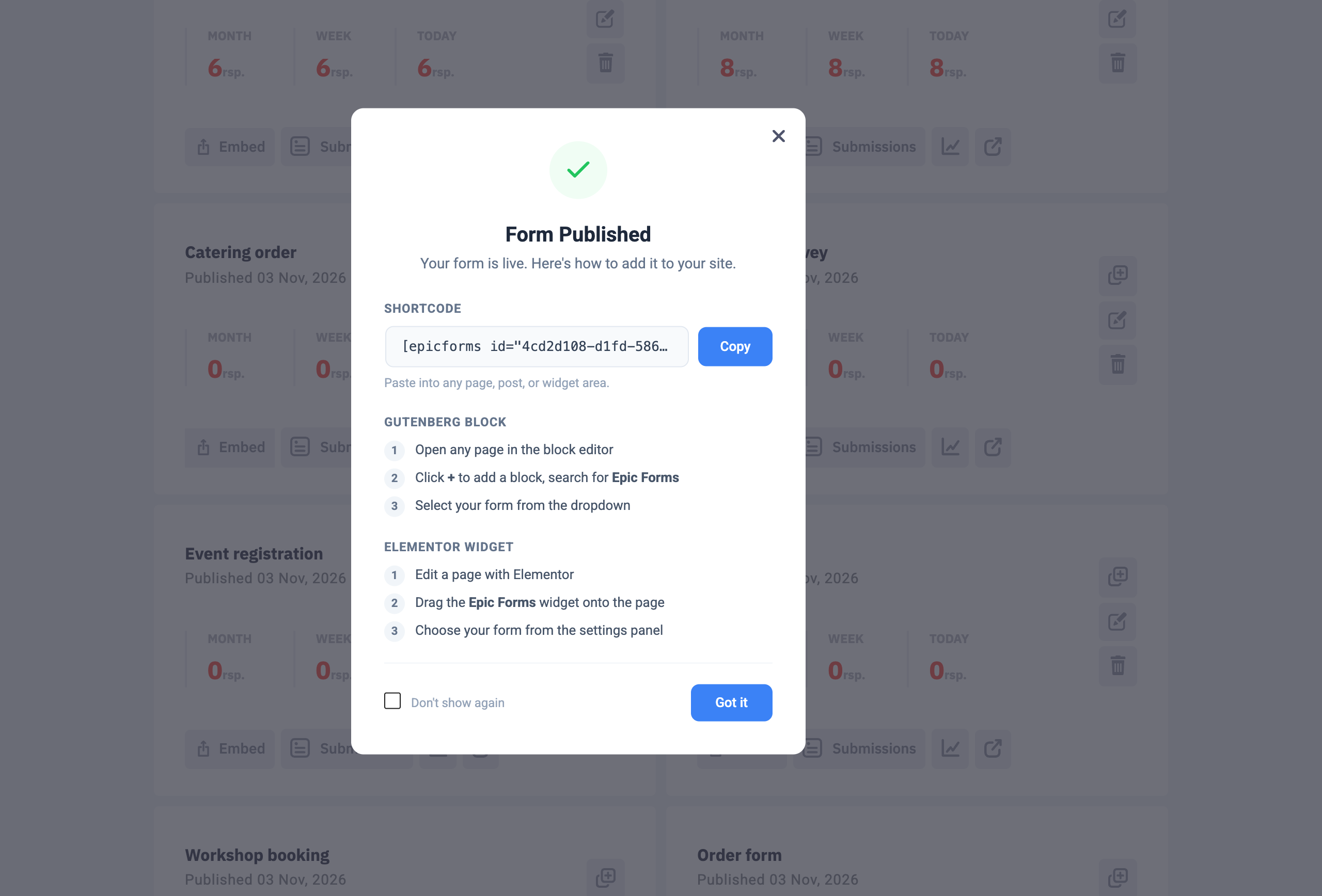
Put the form on a page: in Forms & Submissions click Embed on your form’s card. Copy the shortcode into any page, or add the Epic Forms block in the block editor and choose your form.
Open the page and fill in the form yourself to test it. Every submission appears in Epic Forms → Forms & Submissions under your form’s Submissions tab.