
A project brief that only asks what matters. Choose a website, a logo or both, and the steps that don’t apply are skipped.
Try it
The Website and Logo tiles stay greyed out until you say what you need. Choose “A logo” and Continue jumps straight past the Website step.
How it’s built
In your WordPress admin, open Epic Forms → Forms & Submissions and click Create Form. Give it a name you’ll recognise later.
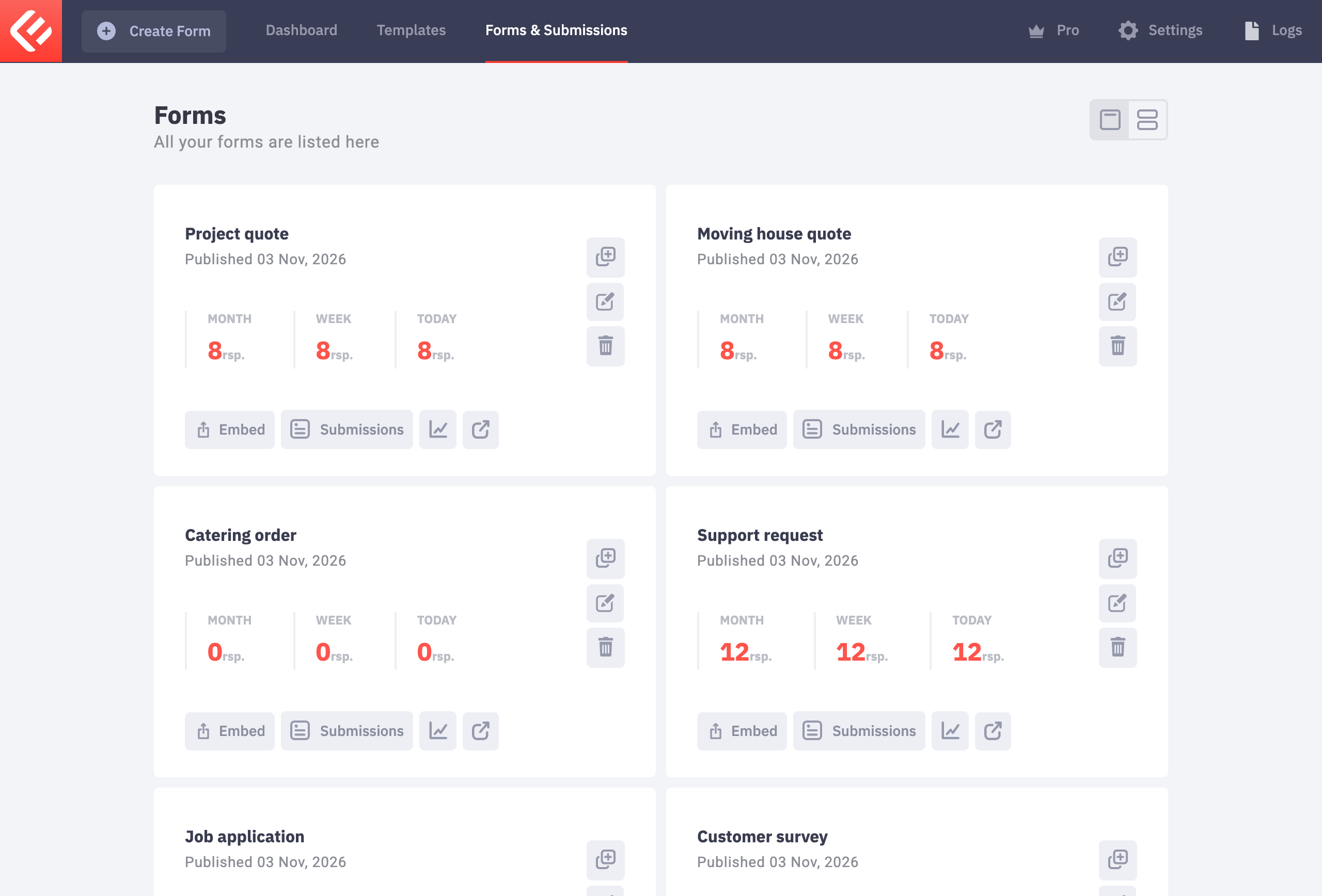
Build each question as on any form: click Add Field, set its label, switch on Required where an answer is needed, and give it a data tag for emails. New to Epic Forms? The contact form guide covers these basics step by step.
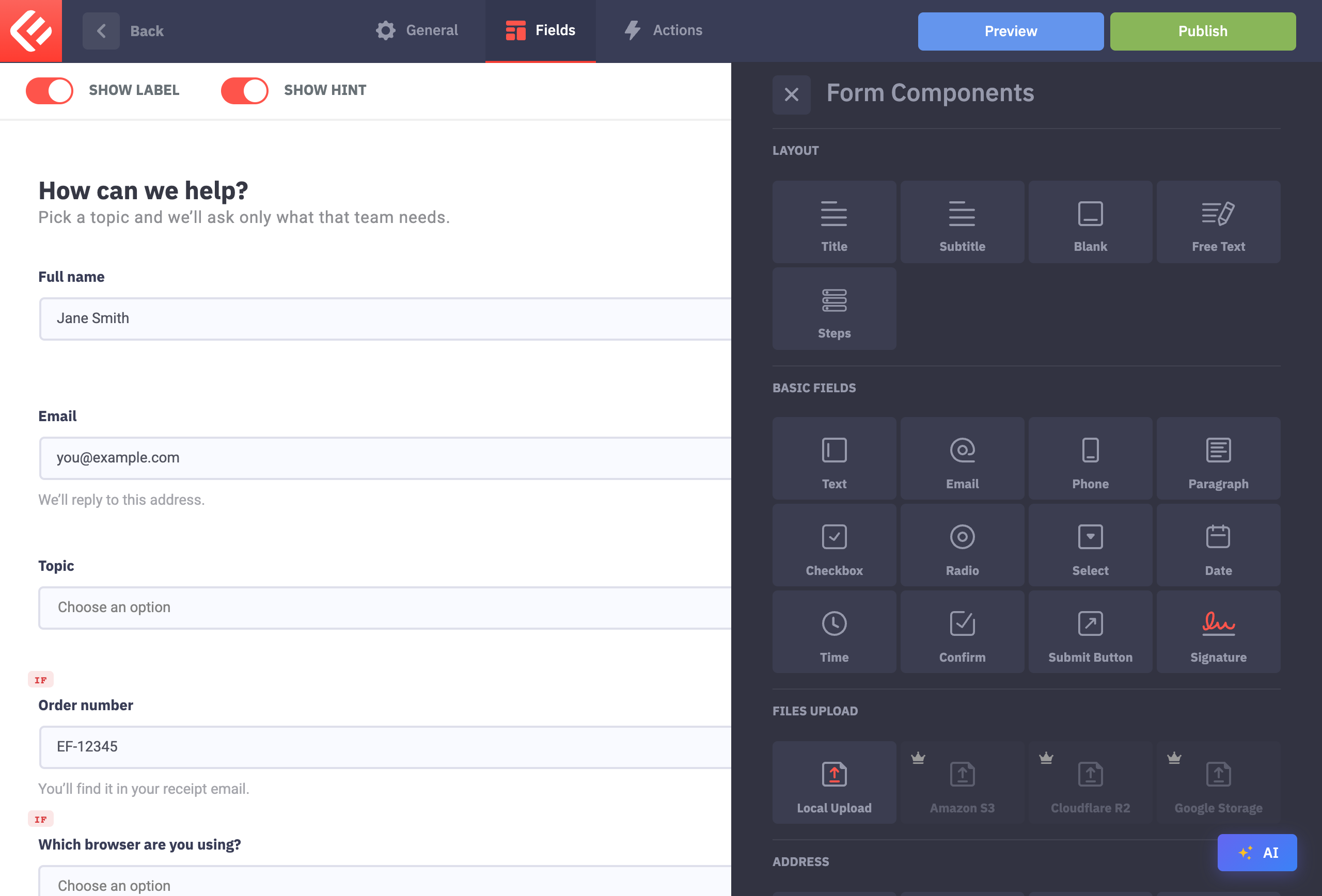
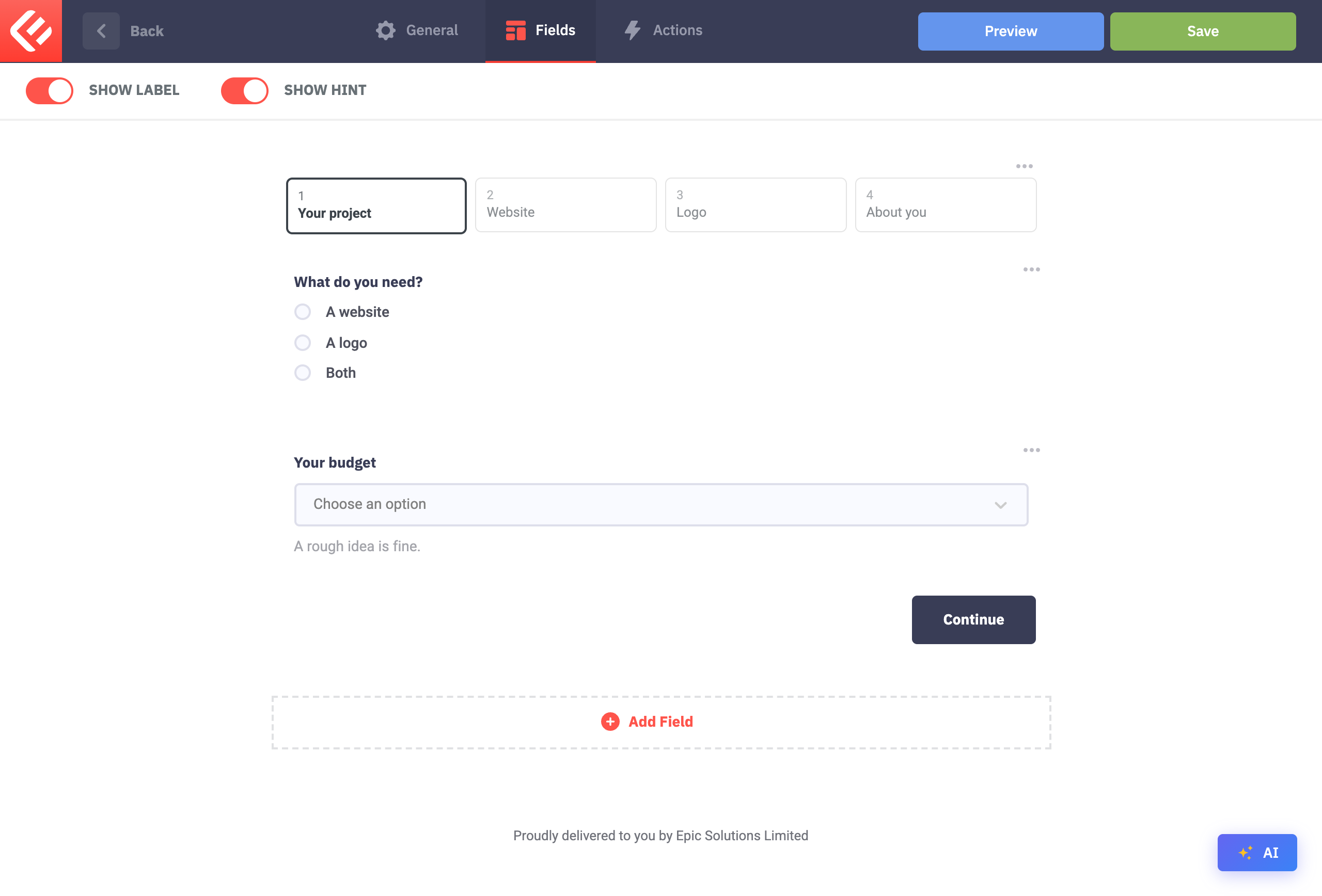
Click Add Field and add Steps (Epic Forms Pro). The form splits into two steps: a step indicator appears above the fields, with Back and Next buttons below them. The Submit button always moves to the last step.
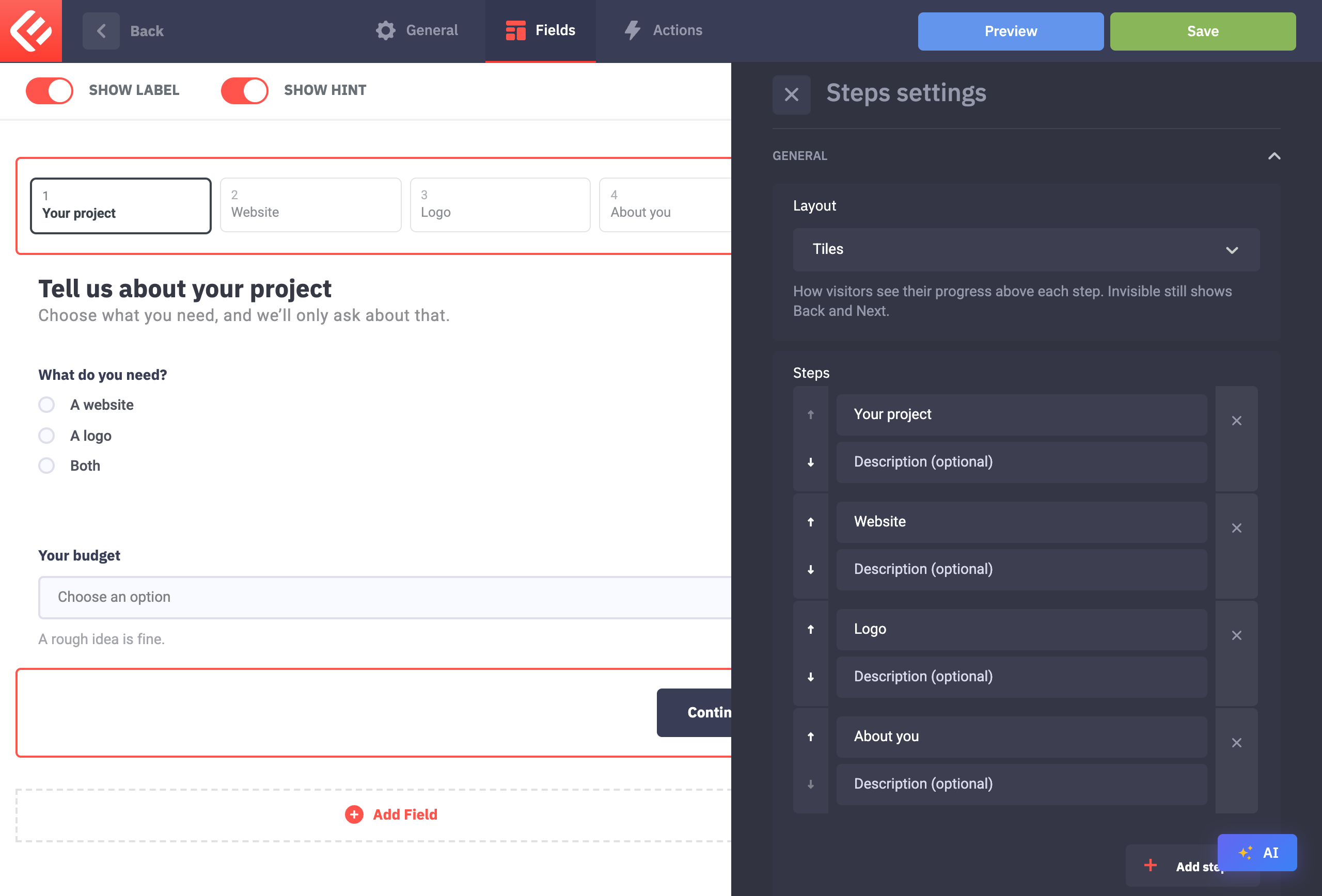
Click the step indicator to open its settings. Under Steps, give each step a title (visitors see it on its tile), use the arrows to reorder them, and click Add step until you have four: Your project, Website, Logo and About you. Under Layout choose Tiles, and change the Next button text to “Continue”.
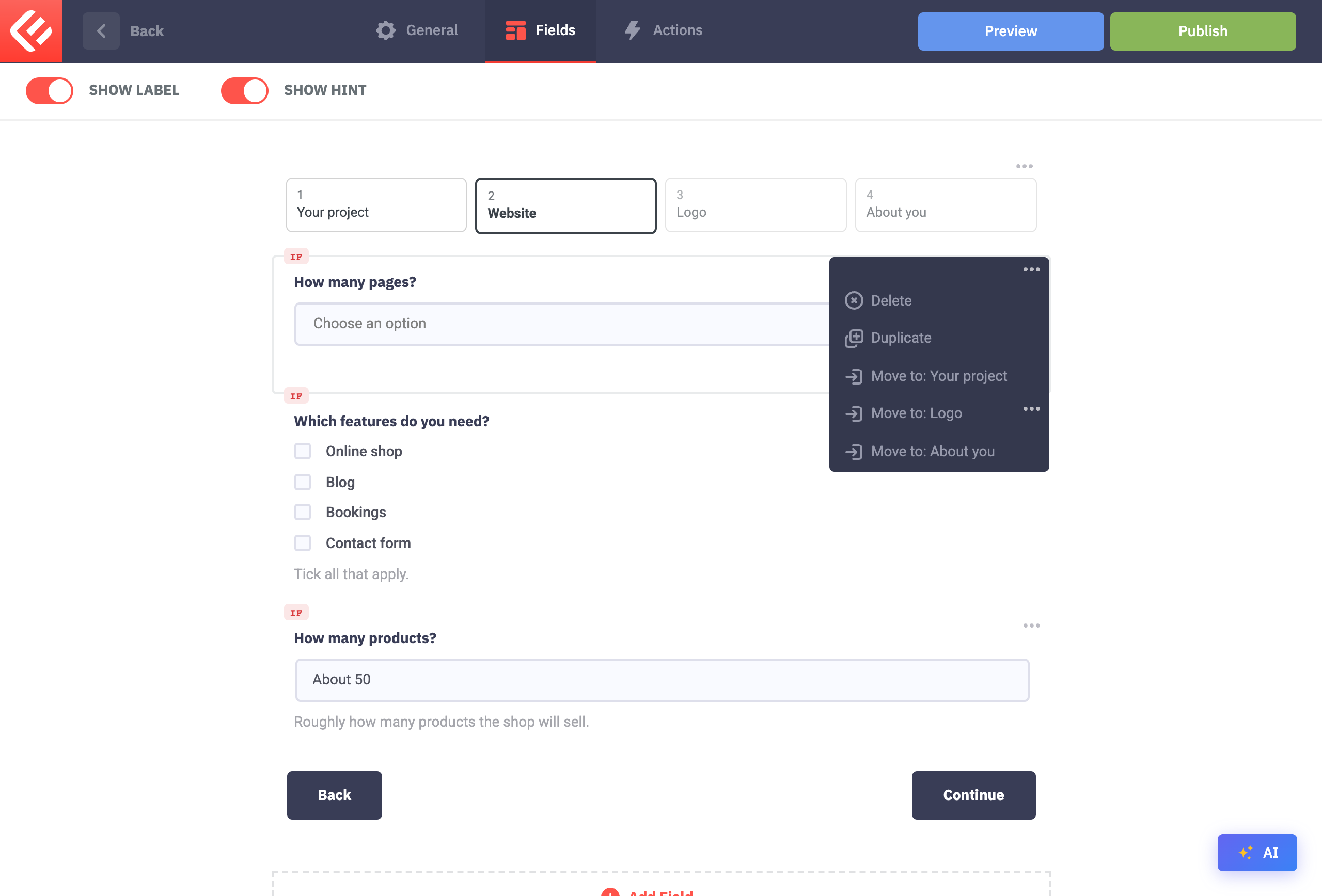
Click a tile in the indicator to show that step on the canvas, and add its questions there. To move a question you already have, open its three-dots menu and choose Move to: Website (or any other step).
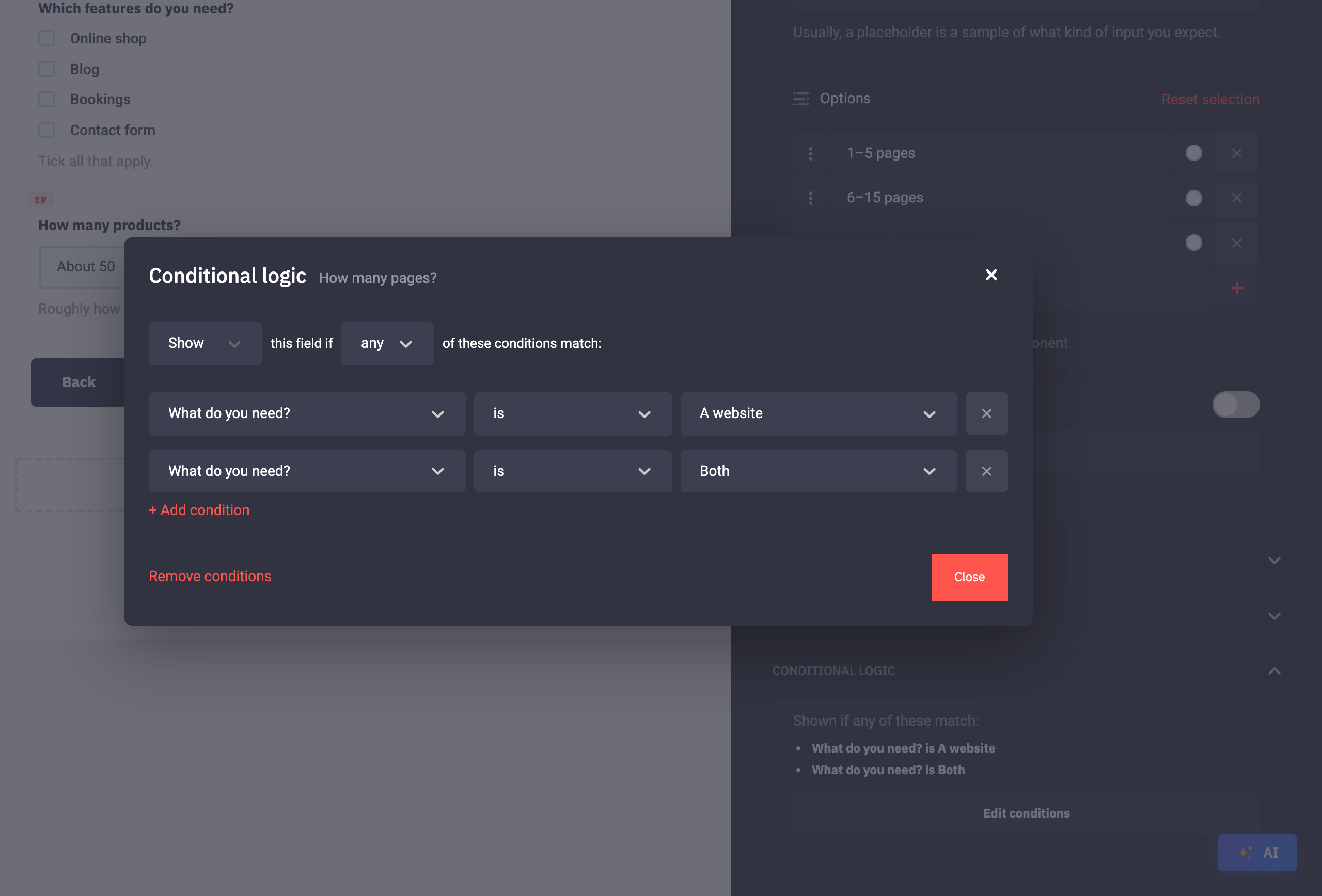
Now the branching. Click the How many pages? question and, at the bottom of its settings, open Conditional logic and click Add condition. Set it to Show this field if any of these conditions match, then add two conditions: What do you need? is “A website”, and What do you need? is “Both”. Give the features question the same conditions, and the two Logo questions “A logo” or “Both”.
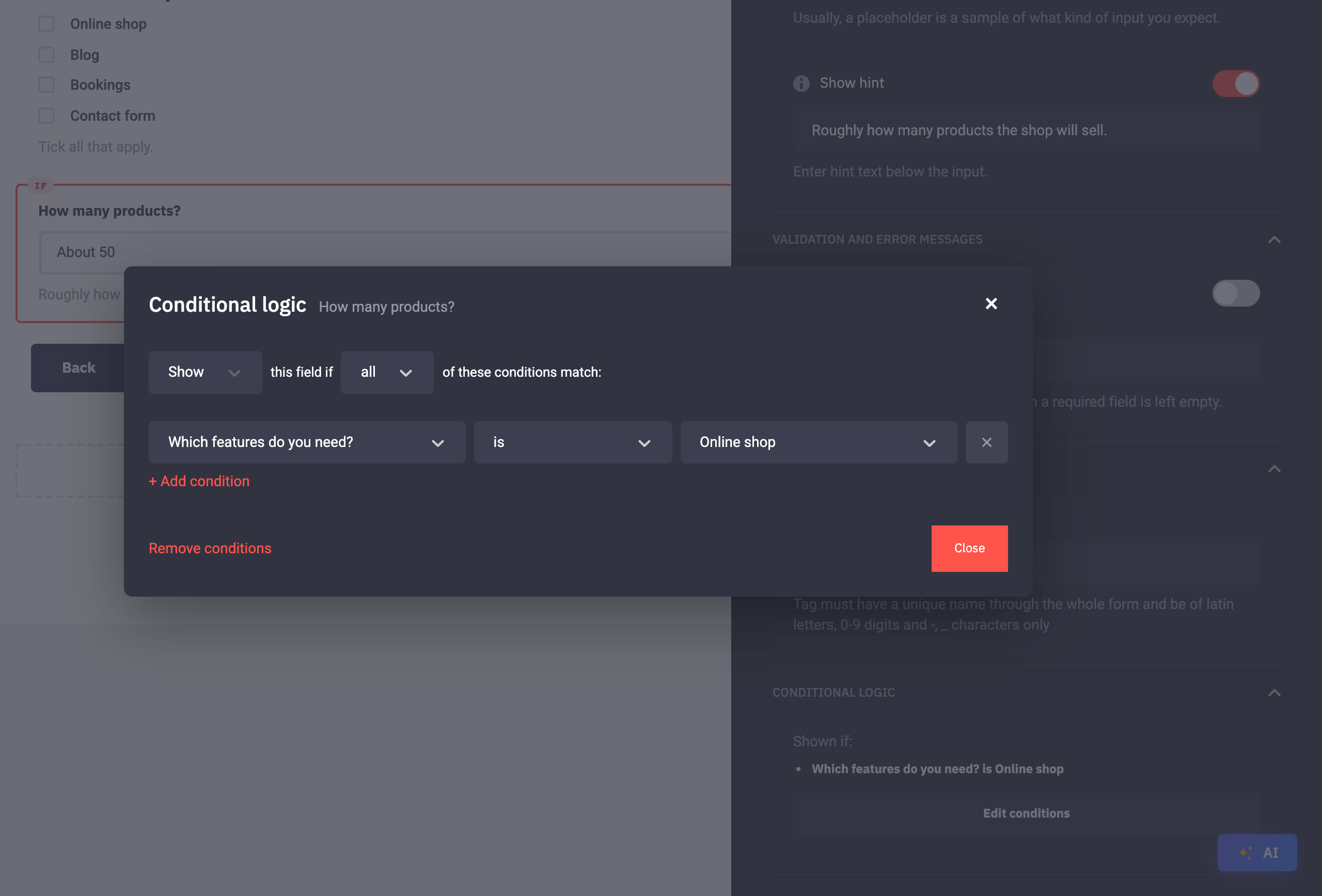
Conditions can build on each other. How many products? has one condition: Which features do you need? is “Online shop”. On a checkbox question, is means “the ticked answers include”. A hidden question counts as unanswered, so when the whole Website step is hidden, the products question stays hidden too.
When every question on a step is hidden, Continue and Back skip that step, and the Tiles indicator shows it greyed out. Try it in the form on this page. Submit sits on the last step, so that step is never skipped. Keep at least one question on step 1 that is always shown, so visitors can always go back to the start.
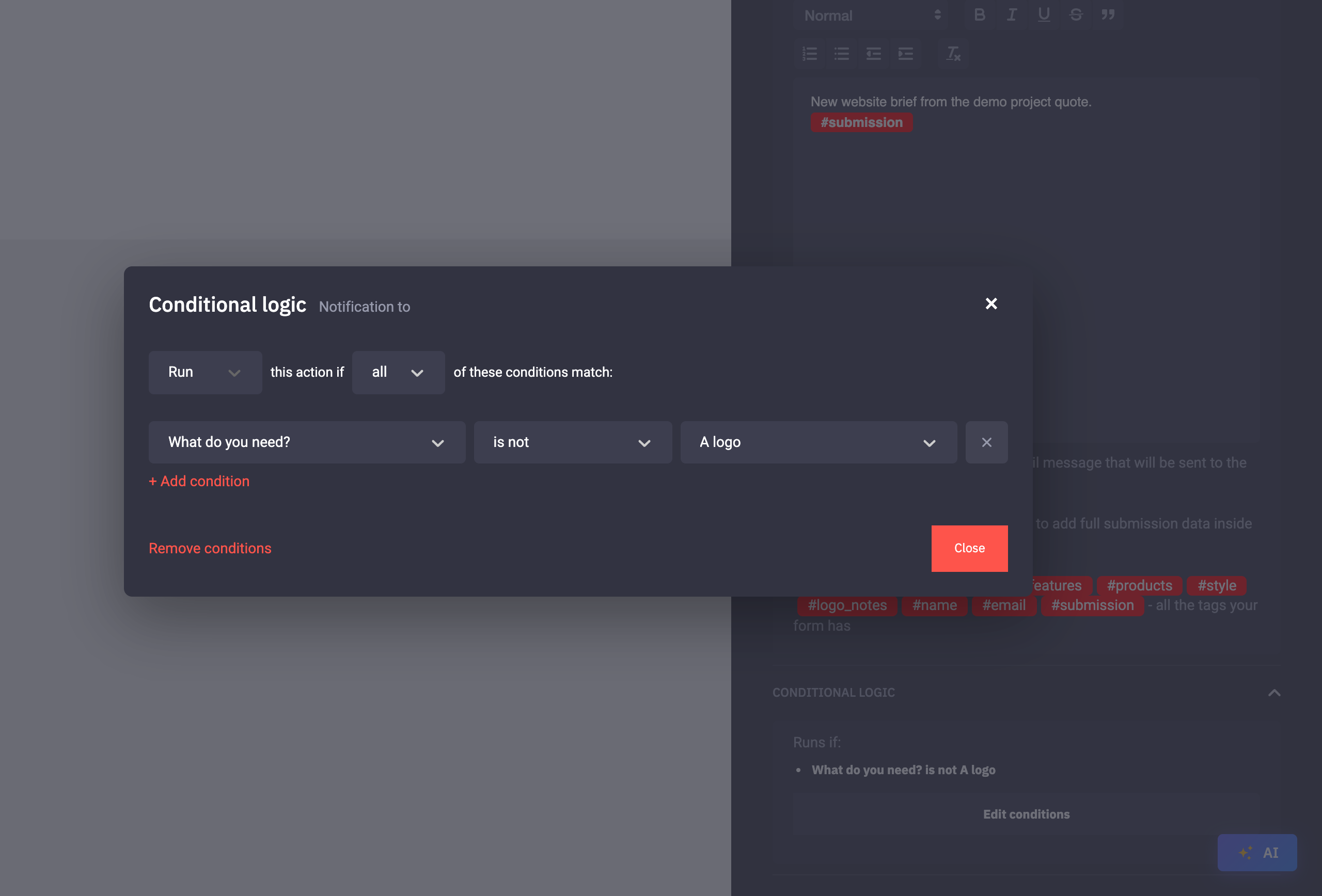
Send each brief to the right team. On the Actions tab, add two Notifications with the subjects “[Development] New website brief” and “[Design] New logo brief”. Click the first, open Conditional logic, click Add condition, and set Run this action if What do you need? is not “A logo”. Give the design email is not “A website”. A brief for both goes to both teams.
Click Save to keep your changes, then Publish. Visitors only see a form once it’s published.
Put the form on a page: in Forms & Submissions click Embed on your form’s card. Copy the shortcode into any page, or add the Epic Forms block in the block editor and choose your form.
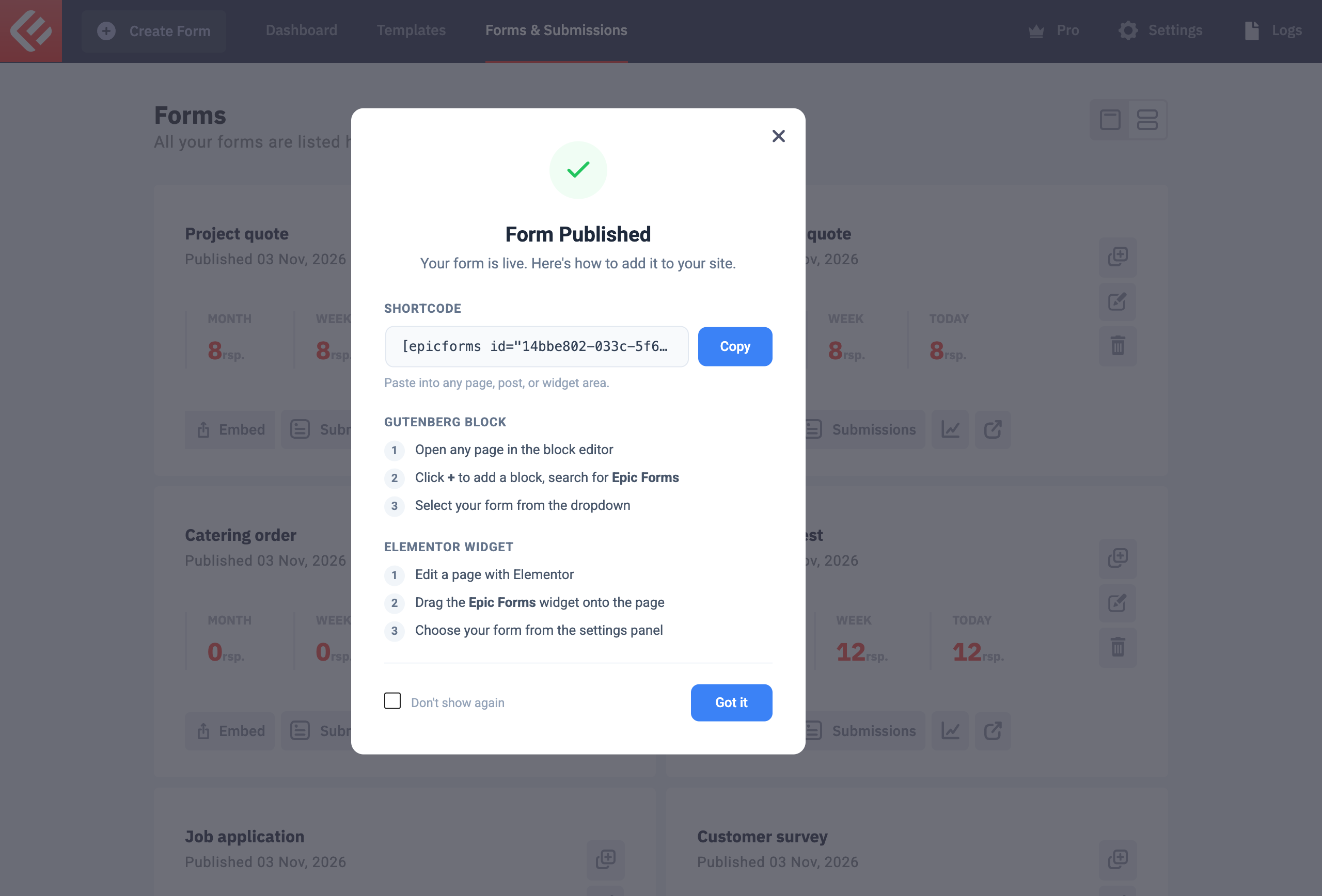
Open the page and fill in the form yourself to test it. Every submission appears in Epic Forms → Forms & Submissions under your form’s Submissions tab.
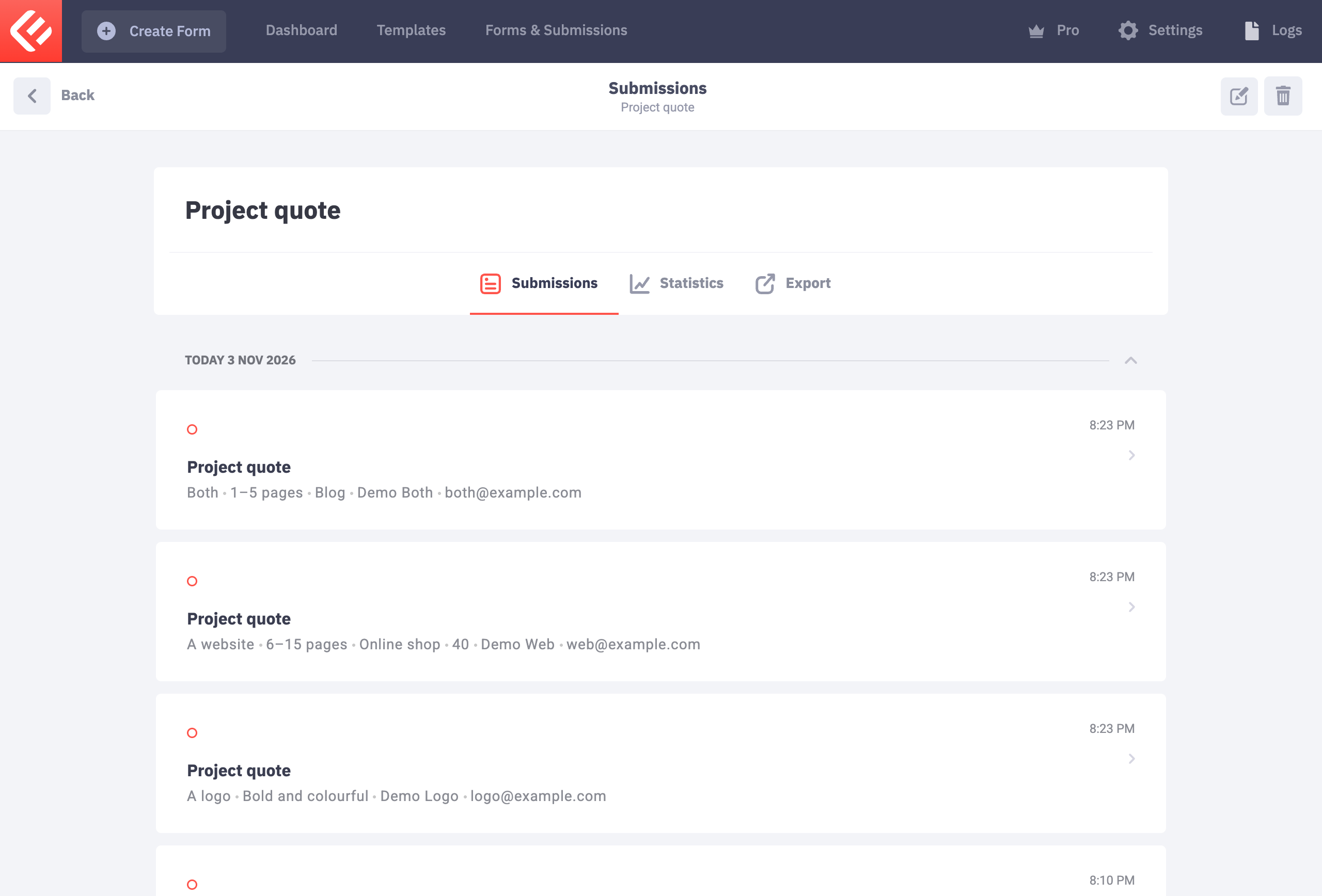
Behind the scenes, this form emails the brief to the development team, the design team or both, depending on the first answer. Those emails go to our demo inbox, so you won’t see them.